
Everything you need to pursue, win and deliver the work
A step-by-step, screen-by-screen walkthrough of the whole platform, from importing company data to submitting a compliant response and managing awarded contracts in Perform. Follow source review, field work, finances and closeout alongside Growth and source-backed guidance. Updated October 23, 2026.
You will need your own free SAM.gov API key
SAM Submit searches SAM.gov with each subscriber's own SAM.gov API key, so your lookups always run on your own daily allowance. It is free with a SAM.gov account and takes about five minutes to set up.
SAM Submit connects pursuit with post-award delivery. Start with the notice, build an RFI, RFQ, RFP, Sources Sought, or IFB response, create a Solicitation Response, research partners and track the pursuit in CRM. After award, Perform organizes reviewed contract sources, obligations, staffing, field evidence and finances, and can connect your company's QuickBooks Online or Wave accounting to send invoices to your books. Your company data is entered once and reused across the pursuit tools.
Step 1
Import
DSBS, SAM.gov, upload
Step 2
Workspace
Sections and facts
Step 3
Respond
Check, fix and decide
Step 4
Response
Draft to submit
Step 5
Designer
One-page statement
Step 6
Vendor Search
Find partners
Step 7
CRM
Track the pursuit
Step 8
Perform
Deliver awarded work
- 1
Import brings the facts in
Pull your company record from SBA DSBS or SAM.gov, upload an existing statement or PDF for AI parsing, or type the details yourself. The same profile feeds both the Solicitation Response and the response.
- 2
Workspace is your single source of content
Profiles, section text, certifications, past performance, and your logo live here. One profile is active at a time, and the active profile drives the builder, the designer, the response, the CRM, and vendor evaluation.
- 3
Respond starts with the notice
Enter a SAM.gov Opportunity ID with your own SAM.gov API key. Respond reads the notice, every attachment and any linked pages, lists the requirements, and checks your proposal against them.
- 4
Statement lays it out as a one-page credential
Load the active template, set how much of the page each section gets, move content on the canvas, and generate the single-page PDF that backs your proposal.
- 5
Respond turns your draft into a finished proposal
Fix all gaps drafts the missing wording, a short checklist asks only for what the app cannot fill, and then you generate, edit, recheck and email the proposal. Bid or no bid is decided only once the proposal is complete.
- 6
Vendor Search finds teammates and competitors
On the Search page, search public SAM.gov and SBA registrations by name, UEI, CAGE, NAICS, PSC, or location. Review published contacts, capabilities, federal awards, and exclusion status, then save vendors to the CRM and evaluate fit against any opportunity.
- 7
CRM keeps the pipeline current
Agencies, contacts, opportunities, teaming partners, and activity are derived from your saved analyses, responses, and vendor research, so the pursuit history maintains itself.
- 8
Perform carries the awarded work forward
Open Perform between Awards and CRM in the main menu. Start with the contract portfolio, open a contract dashboard, and use its section links to review sources, assign work, record time, track finances and prepare reports. A won opportunity creates a setup draft, not automatically approved contract terms.
Tips
- The numbered steps are the common route, not a rule. You can start in Respond with just a solicitation ID, or build a Statement first, and still finish the same opportunity.
- The numbered steps on Respond and SAMAwards tell you where you are in the flow.
- You can jump between screens at any time. Your work is saved as you go.
- The footer on every page carries company contact details, a Leadership page introducing the team, and links to Terms, Privacy, FAQ, and Support.
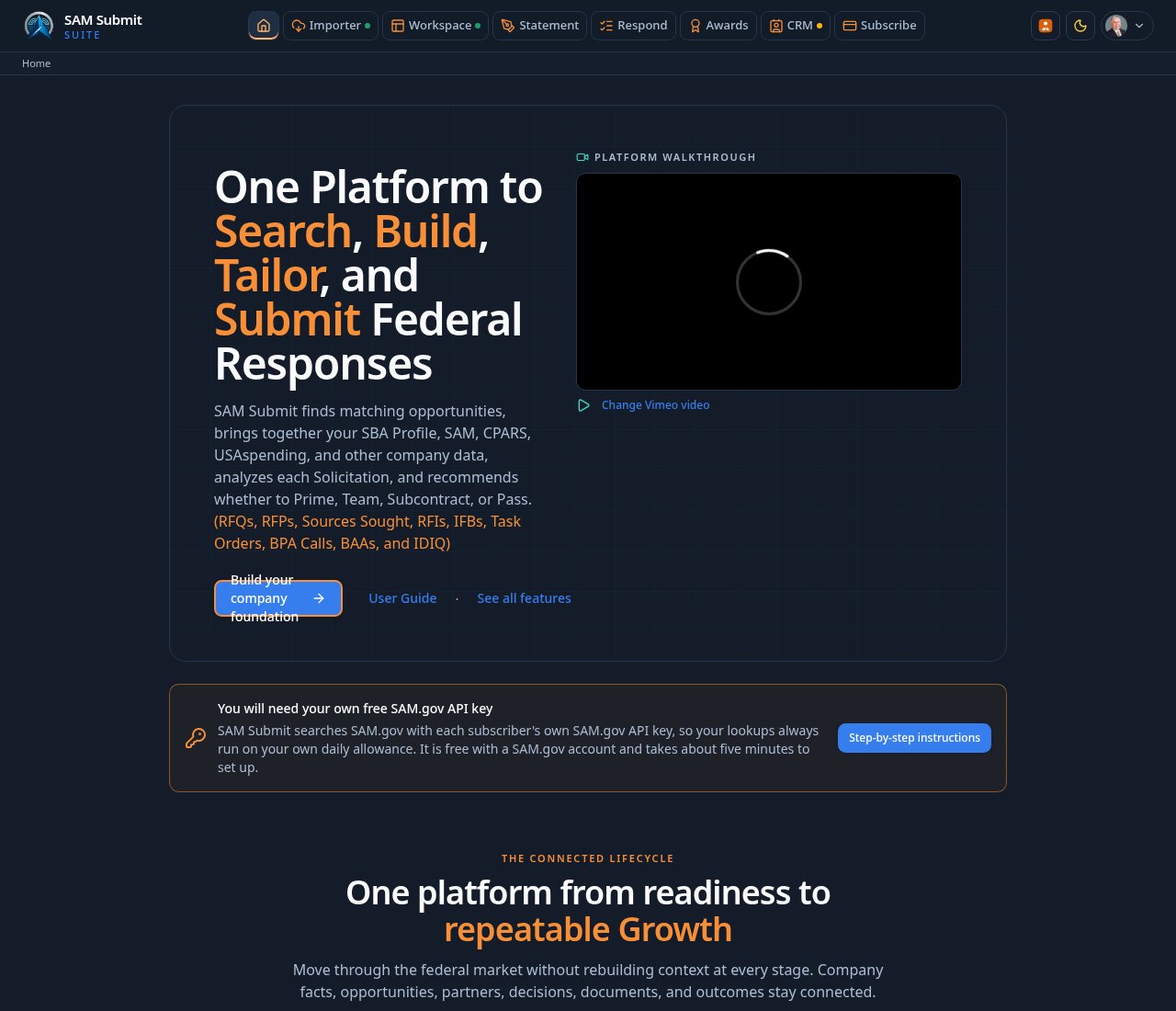
An account keeps your profiles, documents, and subscription attached to you. The public homepage has product information and a walkthrough video. Every application page requires sign-in. Free, trial and subscribed accounts keep their assigned permissions; free accounts do not include AI or API access unless an administrator grants it.
- 1
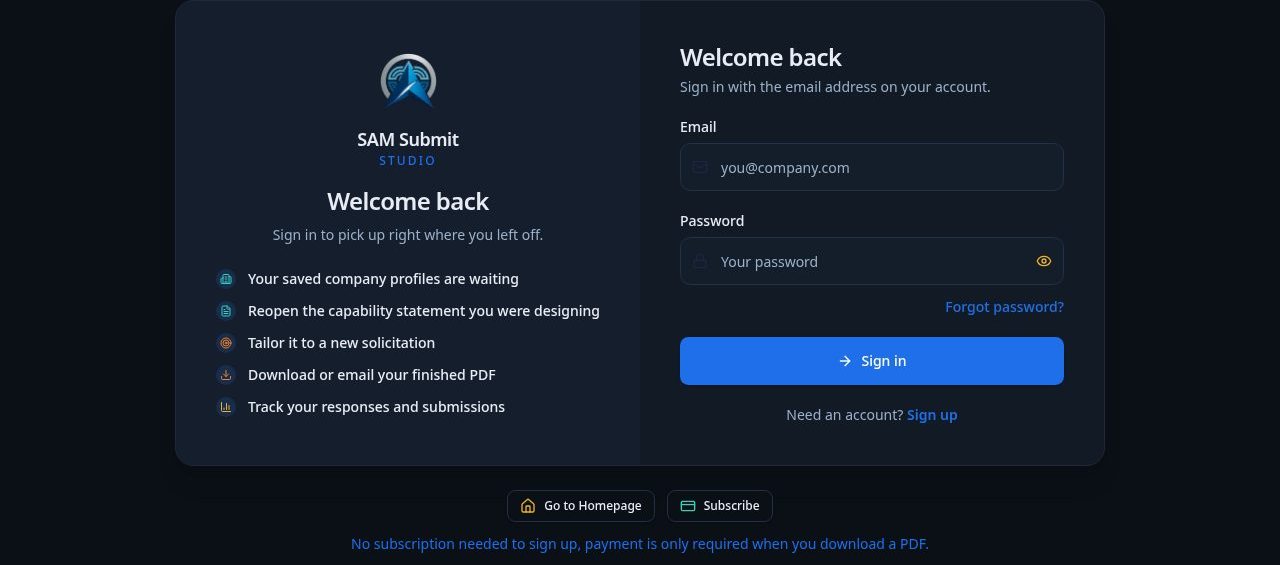
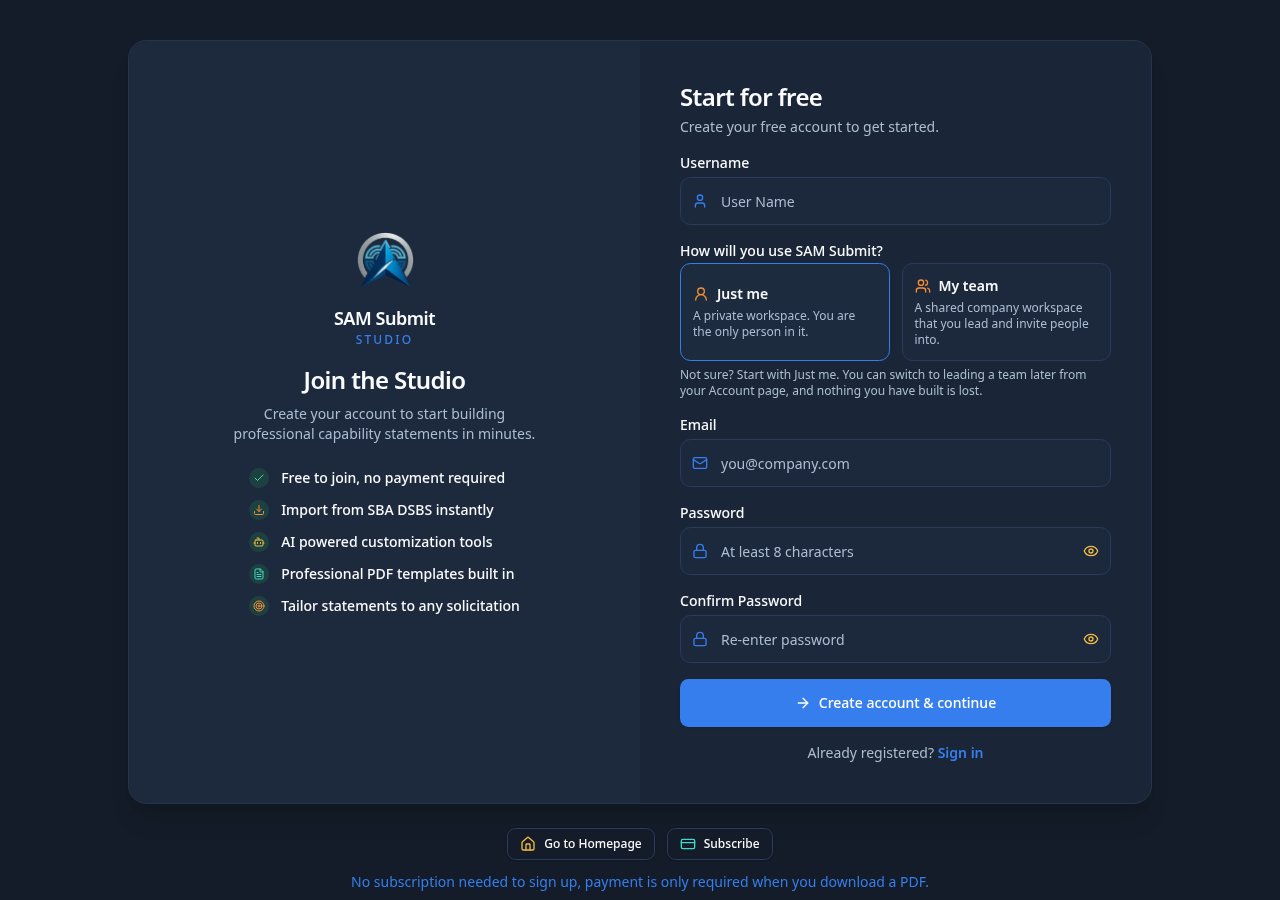
Choose Sign up free, or Sign in
Both buttons sit at the top right of every screen and open the same screen in the right mode: Sign up free opens registration, Sign in opens the sign in form. Email and password, or continue with Google. A Go to Homepage button under the card takes you back out.
- 2
Two panels, one for each visitor
The panel beside the form matches where you are. New visitors see the join heading with reasons to create an account; returning members see a Welcome back heading with lines about picking up where they left off. An administrator can rewrite the heading, the sentence, and every list item, including its icon and icon color, from Admin under Communications, Sign In Page.
- 3
Confirm your email
Open the confirmation message and click the link. Confirmation is what links your saved documents to you on any device you sign in from.
- 4
Reset a forgotten password
Forgot password on the sign in form emails you a reset link that opens the reset screen. Usernames cannot be self served: if you have lost access to the email on the account, write to support@armadacyberdefense.us.
Forgot passwordsupport@armadacyberdefense.us - 5
Set your display name and avatar
Account settings holds your name, avatar, contact email, and password. Your avatar is stored on your account, so it survives sign outs, new devices, and site updates.
AccountProfile - 6
Choose a plan for your team
You can subscribe before creating an account and finish setting it up after payment. Plans include a set number of users, with unlimited Solicitation Responses, Solicitation Responses, and Downloads on every paid plan, and you can add more users at $35 each per month. The Subscribe screen shows what each plan includes.
Tips
- Public screenshots and the walkthrough video show the product. Every application tool requires sign-in; there are no interactive visitor samples.
- Use the theme toggle beside Sign in to switch between light and dark.
- The Pro layout is only available once you are signed in. Visitors always work in the guided layout.
- Administrators land on the Admin console straight after signing in. Everyone else lands in Workspace.
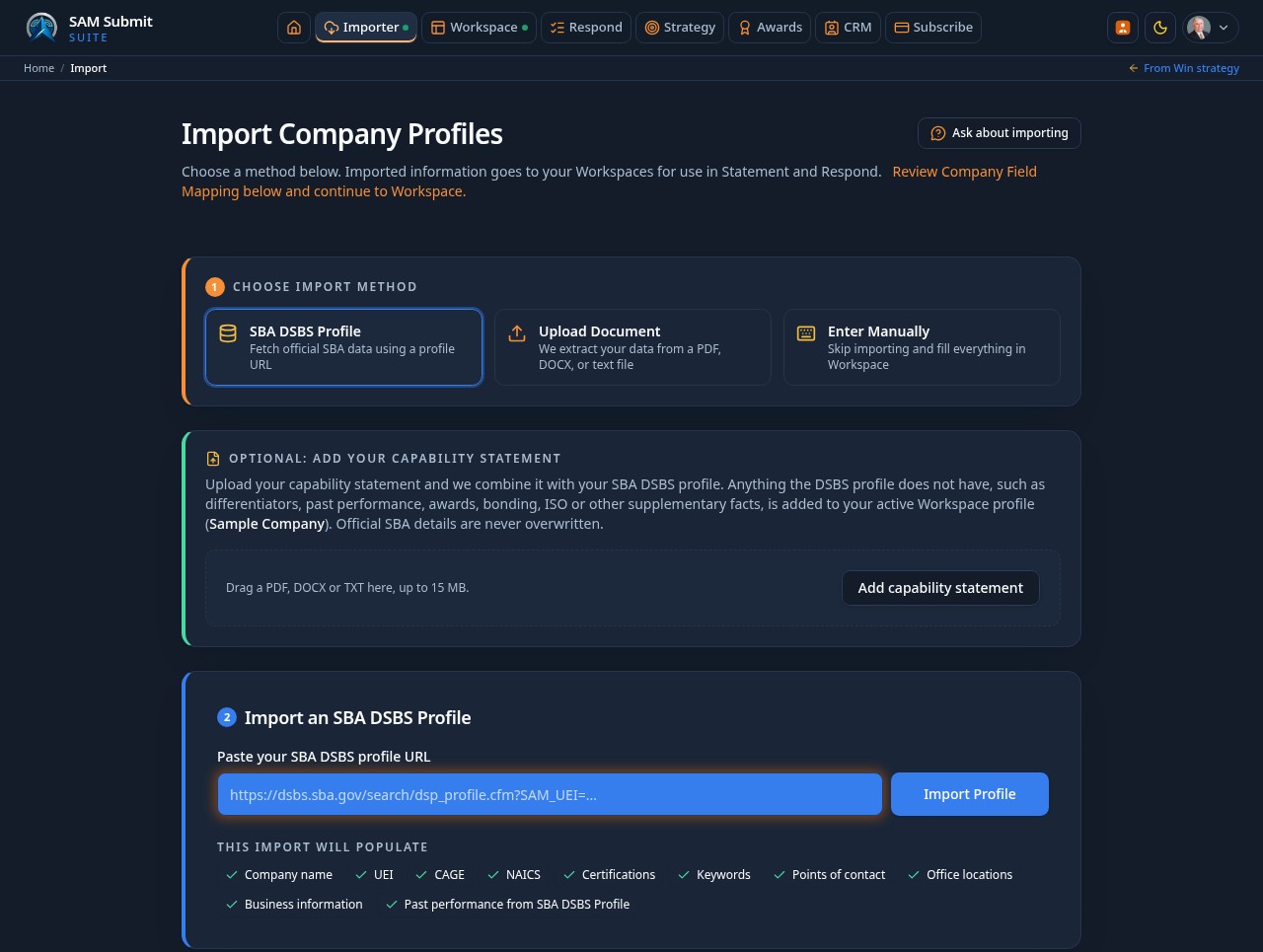
Import is the fastest way to a complete profile. Search the SBA DSBS registry, pull from SAM.gov, upload an existing solicitation response, or start from a blank profile and type it in.
- 1
Choose SBA DSBS Profile
Under Choose import method, select SBA DSBS Profile and paste your public profile URL directly below Import an SBA DSBS Profile. Upload Document and Enter Manually are alternative starting methods.
- 2
Include your solicitation response
The optional capability-statement panel sits directly under Choose import method and stays closed until you open it. Add a PDF, DOCX or TXT to supplement DSBS with differentiators, past performance and supplementary facts missing from SBA. Official SBA details are never overwritten.
- 3
Check a repeat import
Before you import again appears only when the entered URL matches a previously imported company. It is collapsed by default; open the chevron to review the company, date and re-import explanation.
- 4
Review the match before you accept it
Check the address, NAICS codes, and certifications against your own records. Registry data can lag behind reality, so anything stale should be corrected in Workspace after import.
- 5
Or upload a document you already have
A previous solicitation response in PDF or Word can be read directly. Headings such as Core Competencies, Past Performance, and Differentiators are recognized and mapped into the matching sections. Scanned, image only pages are read with OCR.
- 6
Or start blank
Create an empty profile and fill the sections yourself in Workspace. This is the right choice for a brand new entity with no registry footprint yet.
Tips
- Import as much as you can even if it is imperfect. Correcting a prefilled field is faster than typing one from scratch.
- Importing again later does not wipe your edits, it creates content you can accept section by section.
Workspace holds everything the document can say. Profiles let you keep separate versions per agency or joint venture, and the section checklist controls what appears in the PDF.
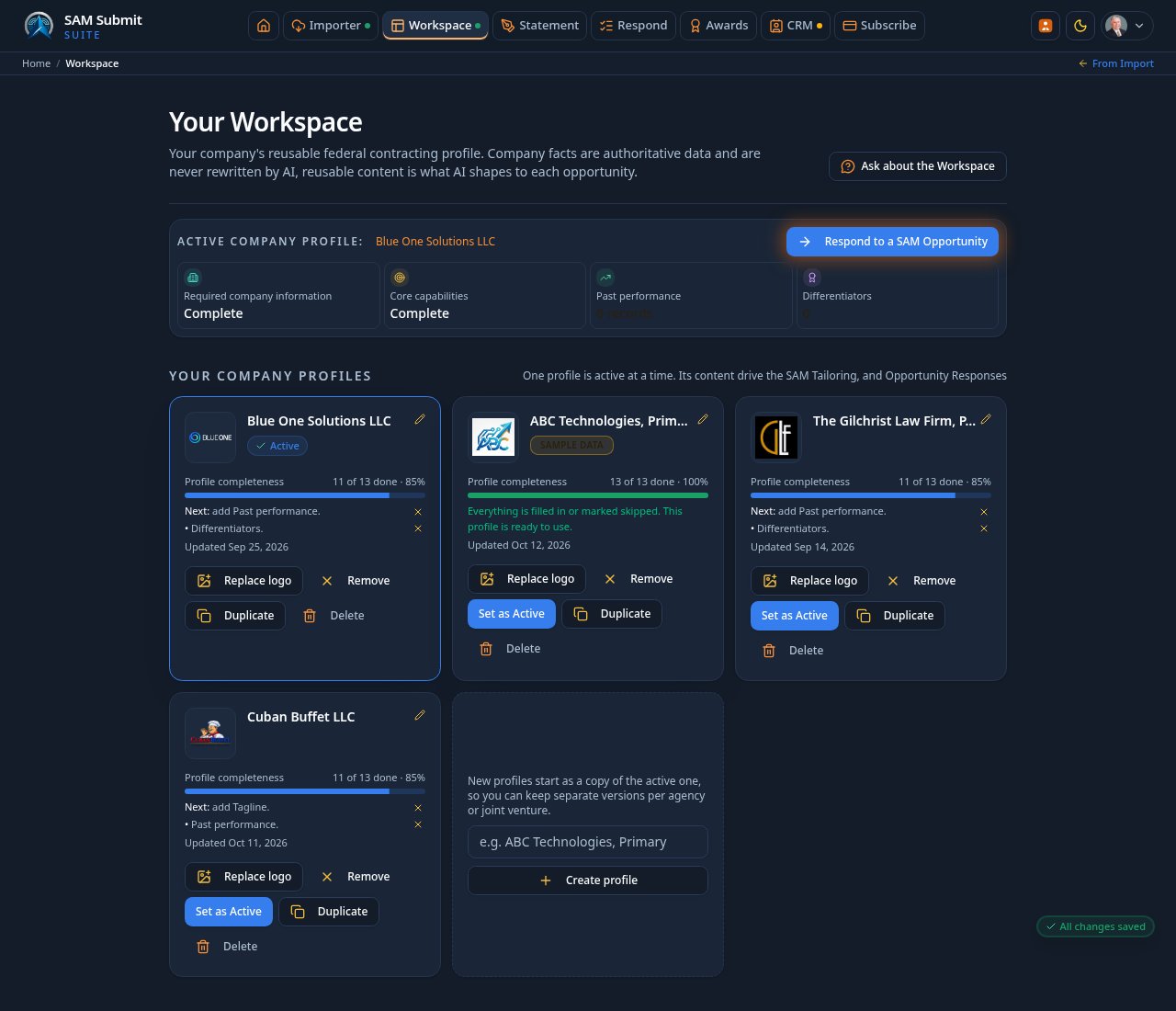
- 1
Set the active profile
The card marked Active is the one every other screen reads. Use Duplicate to branch a profile for a specific agency, then rename it, for example ABC Technologies, Army.
ABC Technologies, PrimaryActive92% complete - 2
Add your logo
Add logo on the profile card opens a cropper. A square or wide PNG with a transparent background works best. The logo appears in the template masthead.
- 3
Fill Company Data first
UEI, CAGE, business type, structure, NAICS and PSC codes, contract vehicles, certifications, geographic coverage, security clearances, address, and contact details. Business type is a controlled list, so pick the closest match rather than typing a variant.
Limited Liability CompanySDVOSB541512GSA MAS SIN 54151SArlington, VA (HQ)Secret - 4
Use Anything Else for what has no field
Anything Else carries facts the standard fields do not cover, such as a teaming posture, an award, or a partnership. Give it an importance weight so the layout engine knows how hard to fight for its space.
- 5
Write the narrative sections
Core Competencies, Differentiators, and Past Performance carry the argument. Write in plain, specific language: what you do, for whom, at what scale, with what measured result.
- 6
Use AI Rewrite when the draft is rough
AI Rewrite All rewrites every active section using only your own content, never invented facts. Compare rewrite passes shows the before and after side by side, and Revert All puts your wording back.
- 7
Choose what reaches the PDF
Each section has a toggle. Included in PDF means it will be laid out by the template. Turning a section off frees its space for the sections that matter for this pursuit.
Tips
- Profile completeness is a guide, not a gate. A 92% profile with strong past performance beats a 100% profile of generic claims.
- Past performance entries carry a customer, contract number, dates, and value. Fill those fields even if the description is short, because the facts only view uses them.
- Numbers persuade. 98.6% SLA attainment reads better than excellent service delivery.
Your official CPARS evaluations are the strongest past performance evidence you own. Download the report you are authorized to access from CPARS, upload it in Workspace, and turn it into structured records that feed your Statement, Response, and Win Strategy.
- 1
Get your file from CPARS directly
Sign in to CPARS yourself, outside SAM Submit, and download your own evaluation report. SAM Submit never asks for Login.gov credentials, CPARS passwords, cookies, session tokens, or MFA codes, and the in-app help panel walks you through the download.
- 2
Open Import from CPARS in Workspace
In the Past Performance library, choose Import from CPARS beside Add Performance and Fetch from USAspending. All three methods feed the same library.
- 3
Upload XLSX, XLS, CSV, or a text PDF
Drag the file into the drop zone or browse for it. The parser recognizes common CPARS heading variations, normalizes dates and currency, and preserves ratings and government narratives verbatim. Unsupported, oversized, empty, or unreadable files are rejected with a clear reason and never create blank records.
- 4
Review and select before saving
The review screen lists every evaluation detected in the file. Select exactly which ones to import, then confirm. Nothing is written to your profile until you do.
- 5
Reimport safely any time
Each evaluation carries a stable fingerprint, so importing an updated report updates the matching record instead of duplicating it, and it never overwrites text you wrote yourself.
- 6
Control AI use per record
CPARS records show a source badge with ratings and narratives in a collapsible details view. A per-record switch decides whether that record may be used in AI drafting, so sensitive narratives stay out of prompts unless you allow them.
Tips
- Scanned image-only PDFs cannot be read. Export the spreadsheet or a text-based PDF from CPARS instead.
- Imported CPARS records strengthen the past performance dimension of Win Strategy, where verified ratings carry real weight.
Tailor is now part of Respond. Respond reads the SAM.gov notice and every attachment, lists its requirements, checks and fixes your proposal, and only then, once the proposal is complete, gives a bid or no bid decision.
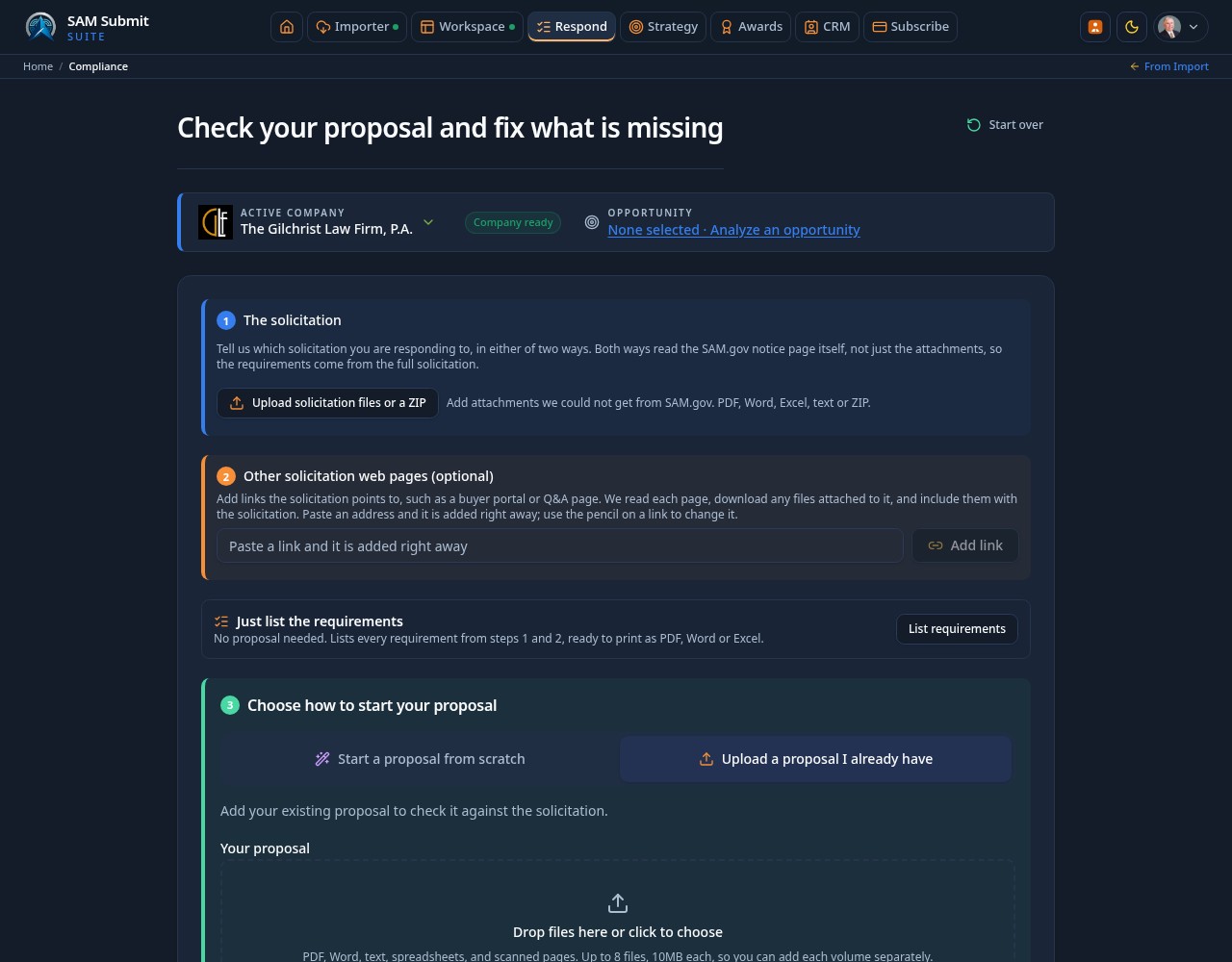
- 1
Enter the solicitation
Paste the SAM.gov Opportunity ID or link in step 1 and add any other solicitation web pages, such as a buyer portal, in step 2. Respond reads the notice page, the description, every attached file and the linked pages in full. Links from the CRM, Workspace and opportunity pages that used to open Tailor now open Respond with the solicitation filled in.
Step 1Step 2 - 2
Just list the requirements
Under steps 1 and 2, Just list the requirements builds a clean list of every requirement with no proposal needed. Each one is marked Required or Desirable with its reference and source file. Group the list by section, type or source, and download it as PDF, Word or Excel.
PDFWordExcel - 3
Check and fix your proposal
At step 3 choose Start a proposal from scratch or Upload a proposal I already have. Both paths share the later check, fix, edit and submission process, with consecutive step numbers for the visible path.
- 4
Generate, edit and recheck
Generate my updated proposal, fill any highlighted placeholders in the editor, and press Recheck (free) until nothing is left.
- 5
Decide bid or no bid at the end
Bid or no bid sits in Email your proposal and opens only once the proposal is complete. The call rests on the finished response and your company profile, says whether to pursue as prime, subcontractor or with a teaming partner, and lists what would change the decision.
Tips
- Old Tailor links and bookmarks open Respond automatically.
- The bid decision is advisory. You still choose whether to send.
Create an opportunity-specific AI report from the SAM.gov notice, your selected Workspace profile, its past performance and available USAspending research. Published facts, unknowns and AI assessments must be distinguished; a win estimate is decision support, not a guaranteed outcome.
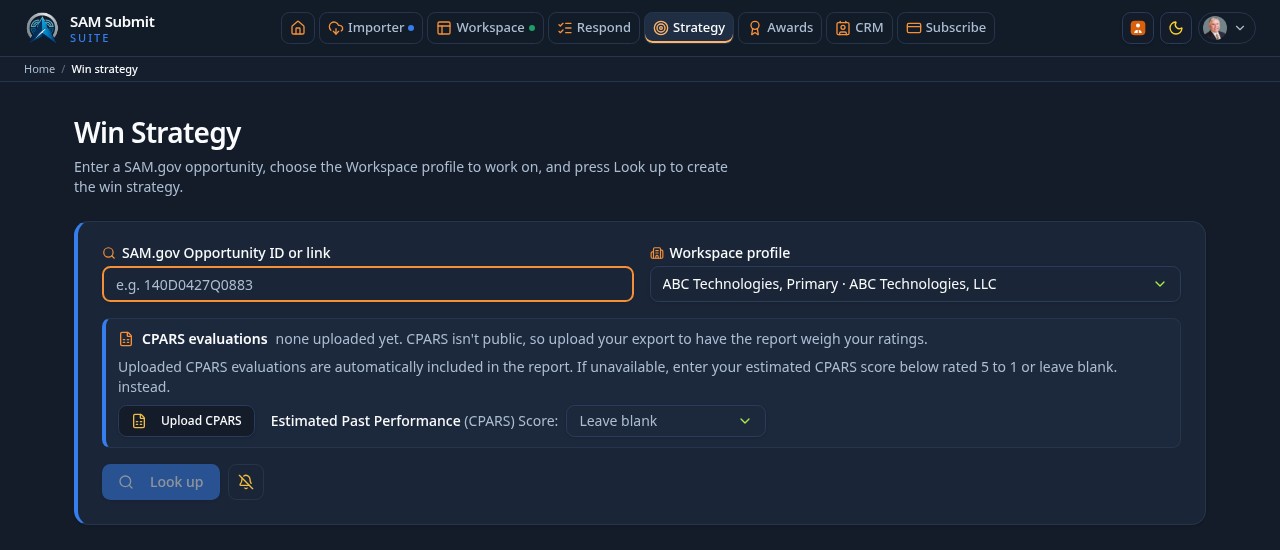
- 1
Open Strategy from the main menu
Strategy sits between Search and Statement in the main menu. Enter a SAM.gov solicitation ID, Notice ID or opportunity link, choose the Workspace profile to analyze, and use your own saved SAM.gov API key.
- 2
Choose official CPARS or an estimate
Upload CPARS opens the import and download instructions. Official uploaded evaluations are automatically included and replace an estimated score. If you do not have an official report, select Exceptional 5, Very Good 4, Satisfactory 3, Marginal 2 or Unsatisfactory 1, or leave it blank. A self-reported score is not an official government evaluation.
- 3
Follow the work under Progress
Look up scrolls to the progress panel. SAM.gov fetching and attachment reading finish before the report-writing phase. Follow company prime-award and market-history research from USAspending, source details and any unavailable-data notices. Use the bell for a completion notification, or Cancel to stop and reset.
- 4
Read the completed report
The page scrolls to the report once writing finishes. Colored section headings, tables and charts organize the available evidence. Numeric visualizations distinguish AI assessments from actual award data. The first Teaming mention opens Find teaming partners in CRM.
- 5
Download or email the report
Use Download PDF, Download Word or Email report above the finished report. Review the email recipient and message before sending.
- 6
Understand your allowance
Visitors cannot run Strategy. Free accounts have no AI or outside-API access by default; a trial invitation or administrator-granted exception can enable access. Paid subscribers are unlimited. Administrators edit the analysis command in Admin; fixed presentation rules apply independently of that command.
Tips
- Complete the selected profile's past performance before running the report.
- Unknown CPARS quality is not proof of poor performance. Estimates stay labeled as self-reported.
- An active run survives in-app navigation. Do not assume a full browser reload continues a running request.
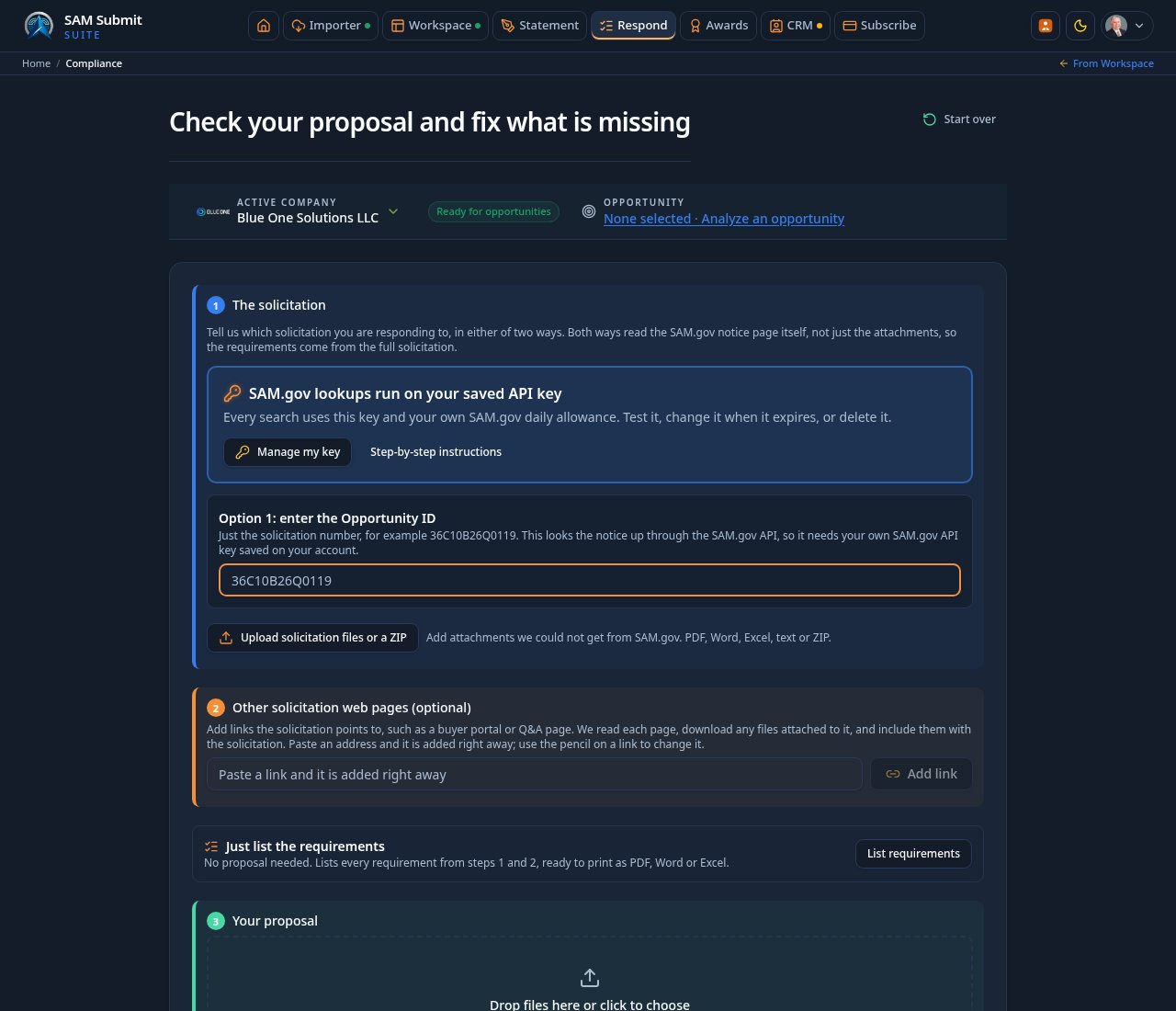
Respond compares your proposal with every requirement in the solicitation, drafts wording for what is missing, and asks you only for what the app cannot fill itself.
- 1
1 The solicitation
Enter the SAM.gov Opportunity ID. Lookups use your own SAM.gov API key, with step-by-step instructions one click away. Upload any files SAM.gov could not provide, PDF, Word, Excel, text or ZIP.
Your own SAM.gov key - 2
2 Other solicitation web pages
Paste a link, such as a buyer portal or Q&A page, and it is added right away. Each page and its attached files are read and listed with file names and word counts. Click a link to open it in a new tab, or use the pencil to change it.
- 3
3 Choose how to start your proposal
Choose Start a proposal from scratch or Upload a proposal I already have. The first draft uses your company profile and solicitation; unknown facts remain placeholders. On the upload path, drop in your files and press Check my proposal. The solicitation is used only as the list of requirements, never as proof that your proposal meets them. Uploads are read in full up to 1,000,000 characters per file.
- 4
4 Your proposal wording
When the check finishes the page scrolls to step 4. Fix all gaps for me drafts wording for every Missing and Partly covered requirement, with live progress, Pause and Cancel. Filter results by All, Missing, Partly, Verification required, Covered or To resolve.
Fix all gaps for me - 5
5 Required before generation and before you submit
One item shows at a time with a running count of checked and remaining items, plus Back to last item. Each item explains where it comes from, the requirement, what the check found and what to correct, with a link to the finding. Check-only items, such as deadlines and SAM registration, just need a check mark. Show all items opens the whole list.
One item at a timeShow all items
Tips
- Your work, including uploaded files, is kept when you leave the page and come back.
- Start over is only for changing what you entered. Open all and Close all expand or collapse every step.
- Turn on Notify me when done to get a browser notice when a long check finishes.
Once every required item is checked off, generate the updated proposal, finish it in the editor, recheck it for free, and email it to the contracting officer.
- 1
6 Download and submit
Generate my updated proposal opens once required items are done, and starts on its own when you check off the last one. It glows orange while it works. It stays locked after it finishes until you edit the document.
Generate my updated proposalNotify me when done - 2
7 Your updated proposal
Open in editor to work directly in the document. Information still needed is highlighted where it belongs, with check boxes and links to each spot; that list is never part of the final proposal. Save under a name to keep versions, with the date and who saved it.
Open in editorSaveWordPDF - 3
Divide the writing across your team
On a team of two or more, a saved proposal shows a Sections panel listing every heading. Assign each section to a teammate or press Take this section, set its status from Not started to Drafting, Ready for review, or Approved, and click a title to jump to it. A My sections filter shows just your share, and an approved section whose wording later changes returns to Ready for review.
SectionsTake this sectionMy sections - 4
Review together before you send
The Review panel holds team comments with @mentions, a three step sign off in order: compliance and technical review, pricing review, then executive approval from a team admin. Each sign off records who signed and when in Eastern Time, and any wording change afterward voids every sign off so approval always matches the text being sent. A History tab keeps an uneditable record of it all. None of this appears in Word or PDF downloads.
ReviewCommentsSign offHistory - 5
Recheck for free
Recheck compares the edited proposal with the same solicitation again. Rechecks of your own proposal never use a monthly check.
Recheck - 6
Link requirements to reviewed evidence
Requirement and evaluation reviews records each entered requirement or factor, solicitation source, proposal section or volume, evidence excerpt, responsible author and signed-in reviewer with observations. Keep mandatory proposal content, qualitative evaluation alignment and Before you submit separate. Entered mandatory reviews must pass on the current saved version before final-file approval; changed versions require renewed review. Passed reviews identify the actual signed-in reviewer and are included in the immutable package record. These are team-entered attestations, not automatic extraction of every requirement or independent certification.
Requirement and evaluation reviewsMandatory contentEvaluation alignment - 7
Check the exact final files
In the saved proposal editor, open Final submission records and Final file requirements. Enter exact filenames, permitted types, byte and page limits with the solicitation reference. Page size, orientation and ordinary extracted text size are measured from the actual PDF. Optional text-box checks flag narrow margins, page overflow and overlap. Missing or uncertain measurements block requested checks. Text bounds are approximate: images, outlines, rotated layout, tables and visible legibility still need an exact-file clipping and overlap review. Count exclusions never waive other checks. Record source-referenced font, margin, form and signature reviews with observations. Pending reviews, issues and changed fingerprints block approval. Approval rechecks bytes and archives measurements and the approving user's attestation, not independent visual certification. Unlisted requirements and the accuracy of your instructions still need review.
Final submission recordsFinal file requirementsCheck final files - 8
Review reused wording and documented exceptions
Content library & authorized exceptions holds company-owned narrative, resumes, past performance, methods, quality plans and answers with version, responsible owner, source, approved use, restrictions, confidentiality and review date. A company administrator approves content before insertion. Expired, withdrawn or superseded sources block final approval until replaced or explicitly removed. Approved wording and its tracked source must remain intact; changed or untracked blocks cannot inherit approval. Debriefing lessons link to affected content without automatic learning ingestion. Missing-information exceptions record the exact label, solicitation clause, reason and written authority reference. A company administrator may approve or revoke an exception only for the saved proposal version and solicitation. This is a recorded team decision, not independent verification of government permission; the missing marker remains visible. Changing the proposal requires a new exception.
Content libraryAuthorized exceptionsDebriefing - 9
8 Email your proposal
Contact names and emails are suggested from the solicitation, with CC and BCC. Sending opens only once the proposal is complete, and asks who approved it and when, in Eastern Time. You get a copy automatically, with your fixes and the compliance report, which the recipient never receives.
- 10
Decide bid or no bid at the end
The bid or no bid recommendation appears in step 8 only after the proposal is complete and ready to send.
Tips
- Saved responses can be renamed, deleted one by one or in bulk, and reopened for more editing.
- Share a saved response with a revocable link. Recipients must sign in.
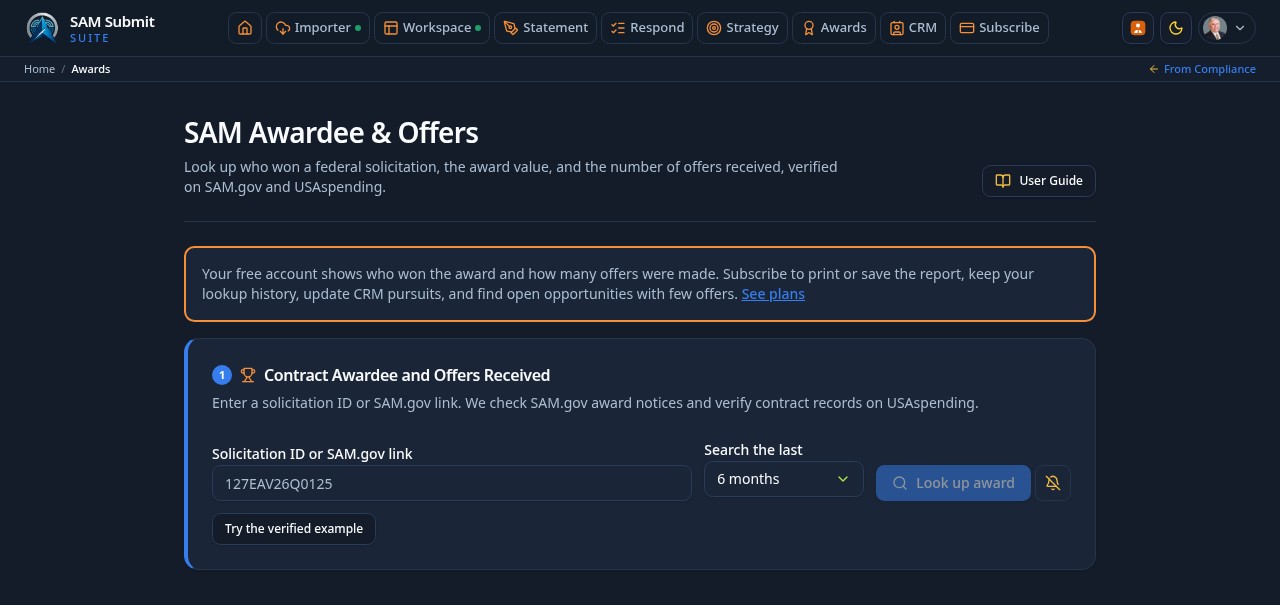
SAMAwards shows who won a contract and how many offers were received, and finds open opportunities likely to draw few offers.
- 1
Add your key only if it is missing
Every lookup runs on your own SAM.gov API key. The setup card disappears once your saved key is available and the lookup changes from step 2 to step 1. Without a key, pressing search takes you to setup. Manage your key on the SAM.gov API key instructions page.
- 2
Contract Awardee and Offers Received
Enter a solicitation or award number. Results show the awardee, amount, offers received and a link to the official USAspending record when one is verified.
- 3
Find few-offer opportunities
Filter by NAICS, PSC, department, agency, opportunity type and set-aside to find open notices where few companies usually bid.
Tips
- Every lookup requires sign-in and your own SAM.gov key. Free accounts have no outside-API access by default; a trial invitation or administrator-granted exception can enable access. Paid subscribers are unlimited.
- Your searches and results stay on the page when you switch tabs.
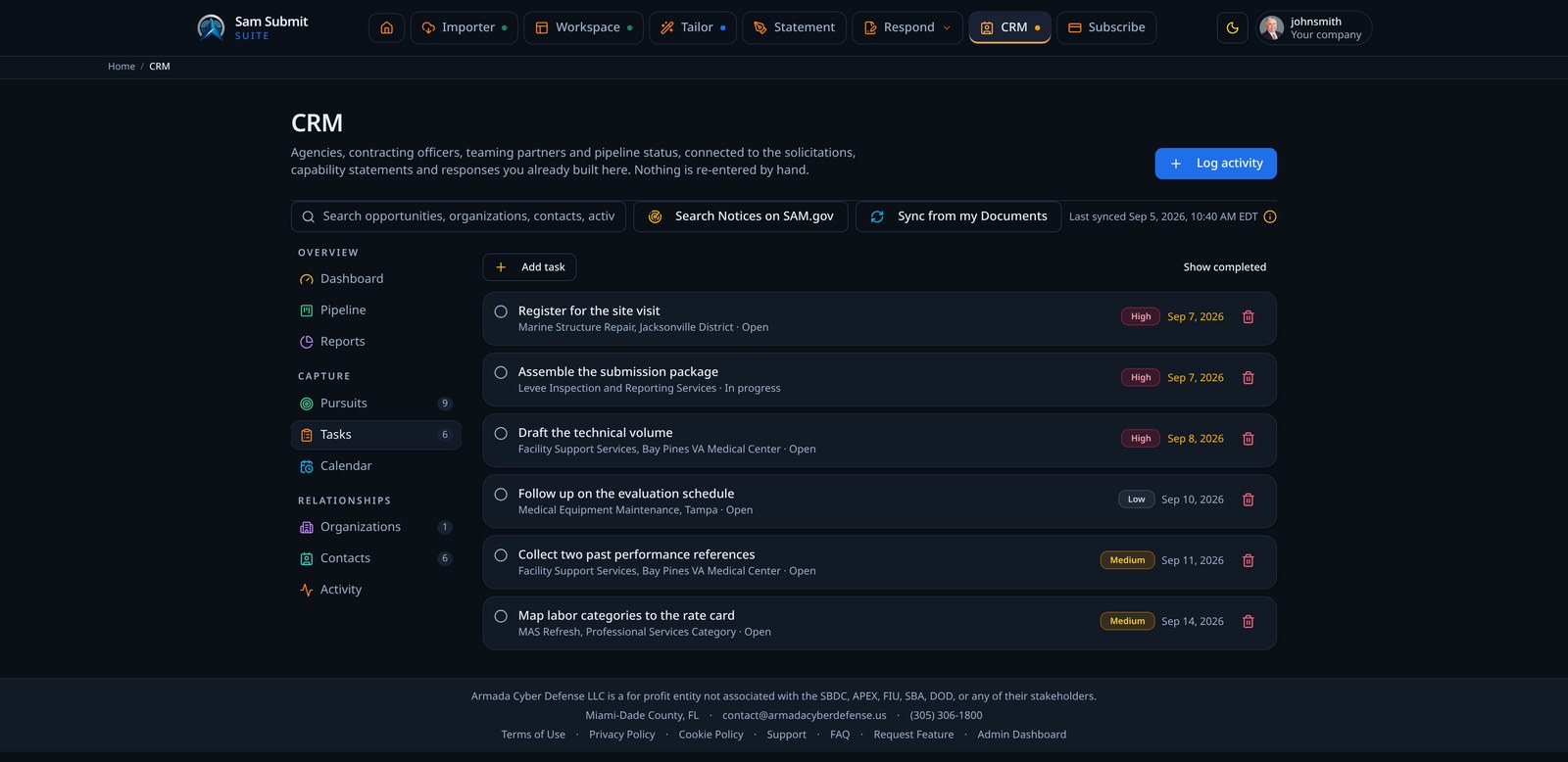
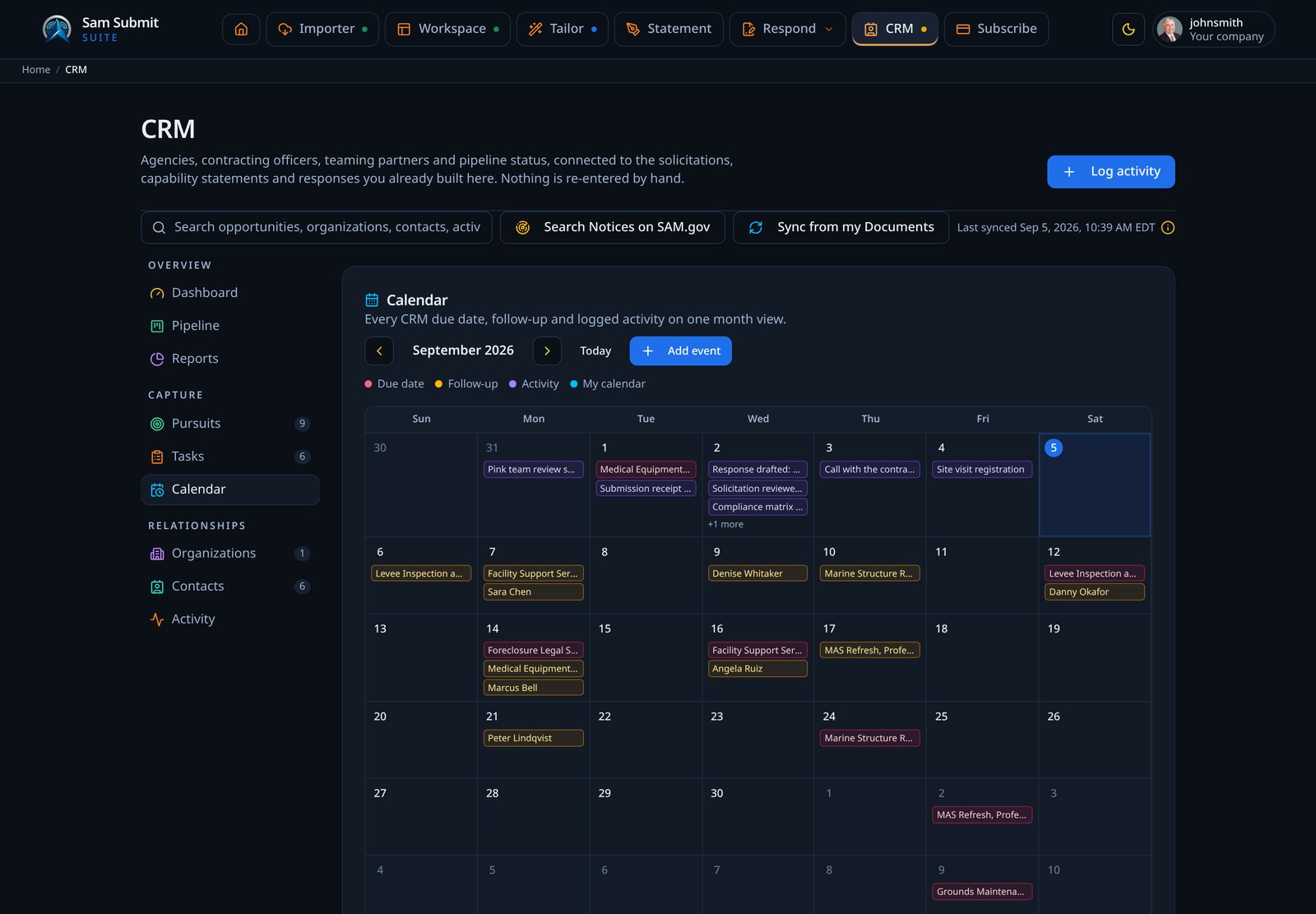
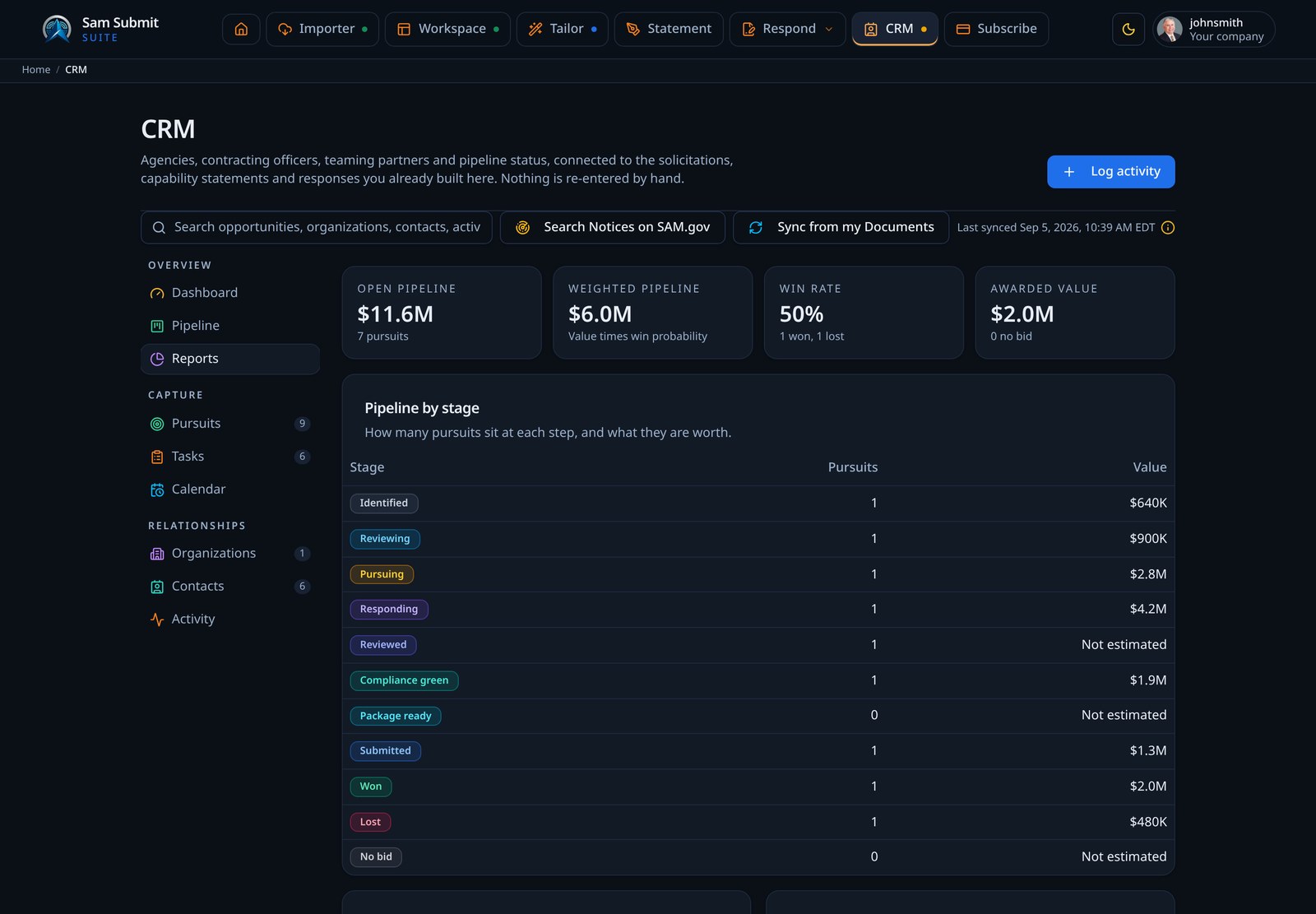
Every agency, contact, opportunity, and vendor you touch lands in the built in CRM. A left hand menu holds the dashboard, pipeline board, reports, pursuits, tasks, calendar, organizations, contacts, activity, and vendor research, and the pursuit stage advances on its own as the response moves from draft to submitted.
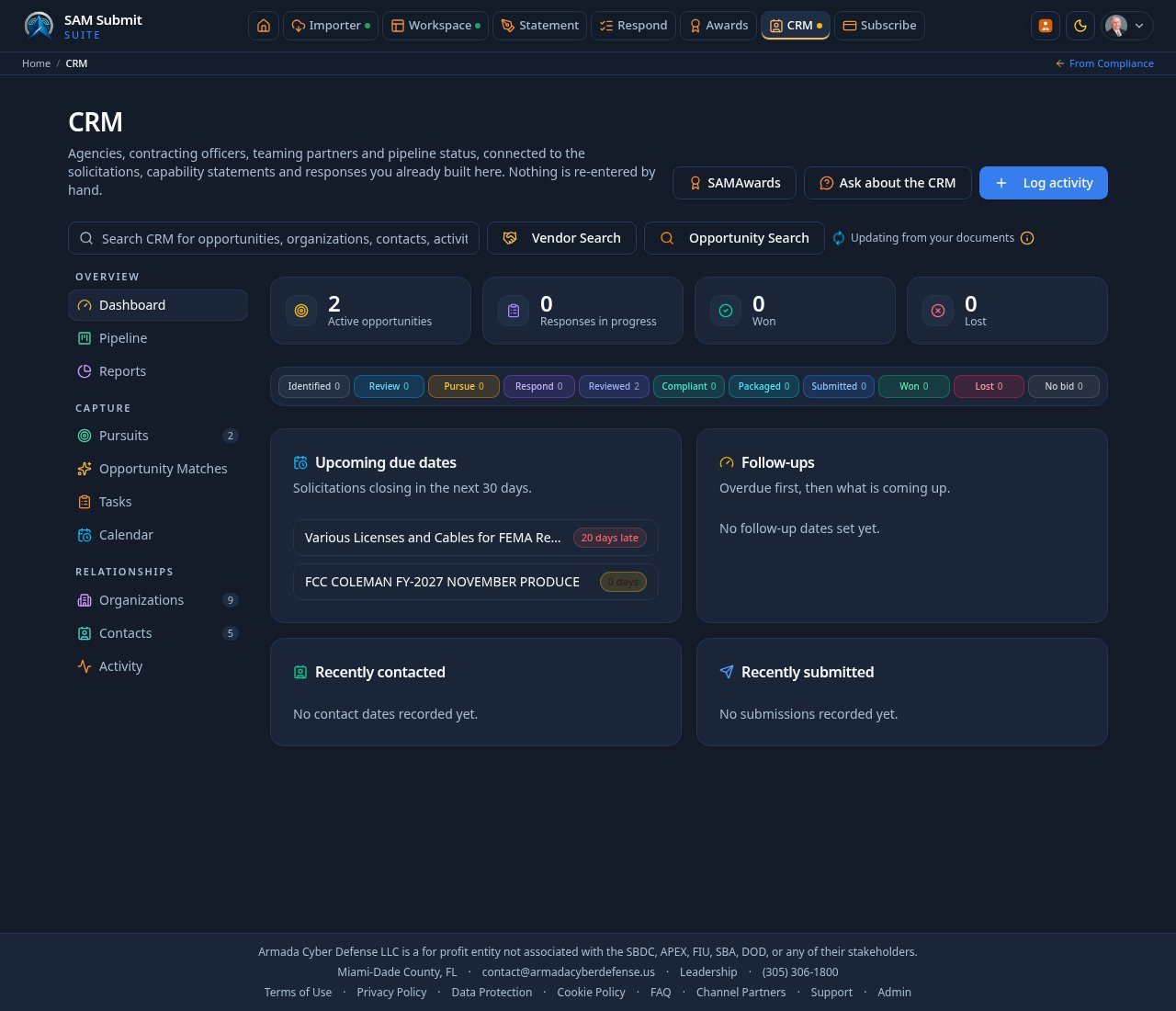
- 1
Fill the pipeline from SAM.gov
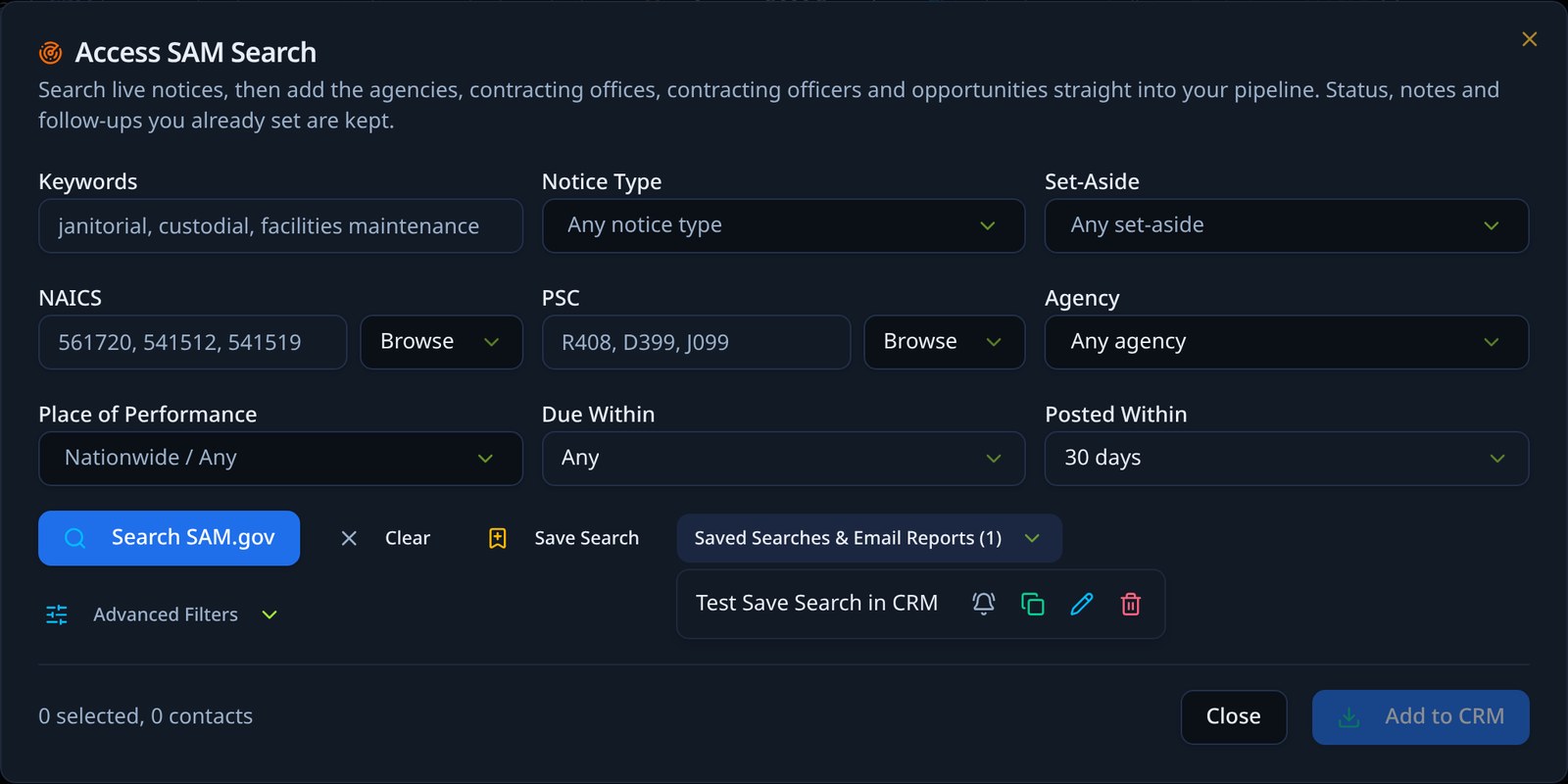
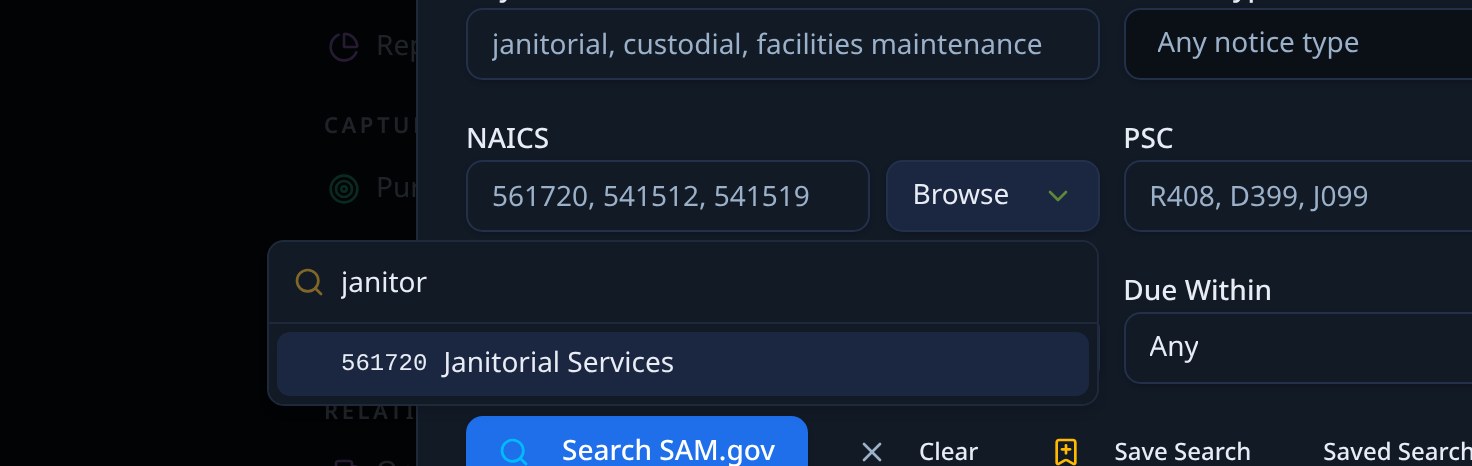
Opportunity Search lives on the Search page in the main menu. It uses your own SAM.gov API key, so set that up first from the key card or the step by step instructions, and every reminder links back there. Search by keyword, SAM solicitation ID, Notice ID or SAM.gov link, plus notice type, set-aside, NAICS, PSC, agency, place of performance, due date window, and how recently the notice was posted. Clear resets every field at once. Tick the notices you want, then Add to CRM or Start in Respond. The CRM itself updates on its own, so there is no sync button to press.
Opportunity SearchClearStart in Respond - 2
Pick NAICS and PSC codes by name
Browse beside the NAICS and PSC boxes opens the full official code lists. Type a number or a plain description, such as janitorial, and pick the code. Picking it again removes it, and you can still type codes in by hand.
Browse - 3
Research vendors and teaming partners
Open Vendor Search beside Opportunity Search on Search. Research published registrations, contacts, award history and exclusions, then save selected vendors into CRM. Opportunity-fit scoring and outreach drafting require the appropriate API and AI permissions.
Vendor SearchFind teaming partnersEvaluate for opportunity - 4
Choose exactly what goes into the CRM
Results arrive with a tick box on each notice and a Select all or Select none control in the header. Only the notices you tick are added, and the count of selected notices and contacts is shown before you press Add to CRM.
Select allAdd to CRM - 5
Save a search and get it by email
Save Search stores the whole filter set under a name. Saved Searches and Email Reports lists them so you can rerun one, duplicate it, rename it, delete it, or schedule email daily, every 2 or 3 days, or weekly at an Eastern Time you choose. Send only new or changed notices or all results, and use Send now for an immediate report. The emailed search opens CRM; select notices and press Start in Respond.
Save SearchSaved Searches & Email Reports - 6
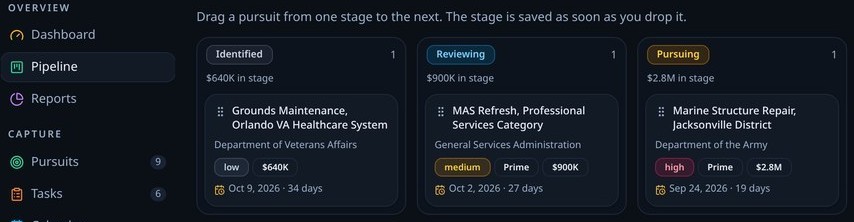
Work the board
The pipeline board shows one column per stage with the count and the value sitting in it. Drag a pursuit to another column and the stage saves immediately.
- 7
Claim a pursuit
On a team of two or more, any unassigned pursuit shows Claim pursuit. Press it to become the capture owner, shown as a badge on the card. Owners keep the pursuit until an administrator reassigns it.
Claim pursuit - 8
Filter by owner
All pursuits, My pursuits, and Unassigned filter the board, and a team member picker shows one person's workload with a count of what is shown. Solo accounts see the plain board as before.
All pursuitsMy pursuitsUnassigned - 9
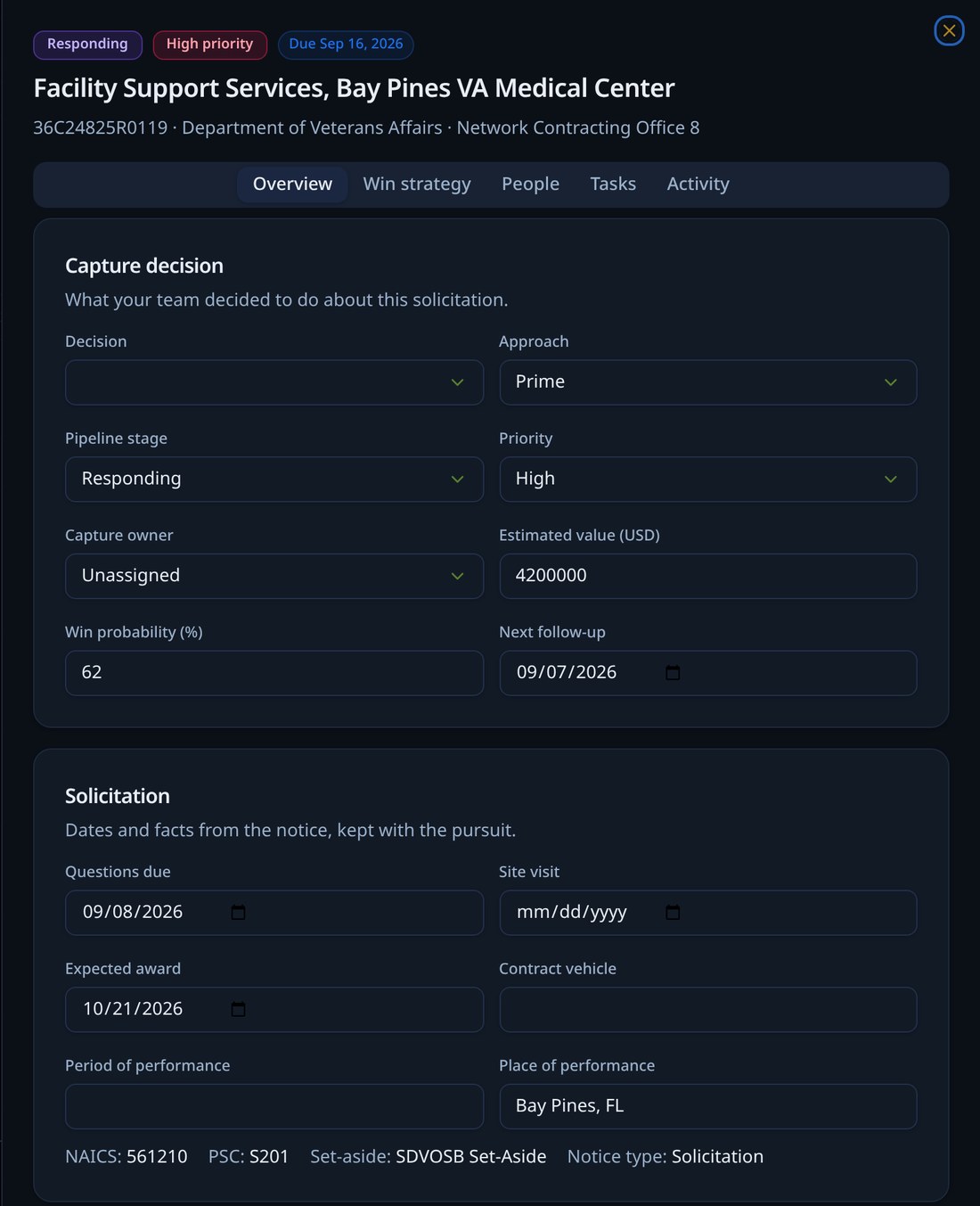
Open a pursuit workspace
Each pursuit has its own screen: capture dates, contract vehicle, value, incumbent and competitors, teaming plan, contacts, tasks, activity and existing strategy. In Capture, record a preliminary Pursue, Hold or Team/Sub review with source, rationale, evidence gaps, eligibility, partner dependencies, effort, optional bid cost, owner, uncertainty and evidence coverage. Optional percentages are user estimates, not calibrated likelihoods. A company administrator approves the latest review; changed evidence requires another recorded review and overrides require a reason. Final bid/no-bid remains with the completed proposal.
- 10
Let stages advance themselves
Creating a response, passing compliance, building the package, and submitting each move the pursuit forward automatically. Emailing the finished proposal from Respond logs the submission on the pursuit, and the bid or no bid recommendation at the end of Respond writes back to the same record, creating the pursuit if it is not there yet. You only intervene to mark hold, no bid, won, or lost.
- 11
Assign tasks
Add a task with an owner, priority, and due date, attached to the pursuit it belongs to. Open tasks appear on the dashboard, the pursuit, and the calendar.
- 12
Use the calendar both ways
The month view shows due dates, follow-ups, logged activity, and events you add yourself. Choose whether the CRM sends its dates out to your own calendar, takes events in from an uploaded calendar file, or both.
Out to my calendarIn from my calendarBoth ways - 13
Turn on email reminders
Reminders are off until you switch them on. Pick the address to notify, how far ahead to be warned, and whether to be reminded about due dates, follow-ups, or both.
- 14
Read the reports
Reports total open pipeline, weighted value by win probability, win rate, and average days to award, then break the pipeline down by agency, set-aside, NAICS, and whether you plan to bid prime, team, or sub.
- 15
Sync to your own CRM
Connect HubSpot, Salesforce, Zoho, Microsoft 365, or a signed webhook with your own credentials. Each user pastes their own token, it is encrypted before storage, and never returned to the browser.
HubSpotSalesforceZoho CRMMicrosoft 365Webhook
Tips
- Pursuit decisions are scoped to the company and the opportunity together, so switching companies never moves another company's pipeline.
- Vendor Search only uses public federal sources. Contact emails and phones come from SBA DSBS where published; SAM.gov does not publish emails directly.
- The calendar link is private to you. An administrator can pause outside calendar links for any account.
- Every paid plan includes the same capabilities; choose your plan by team size.
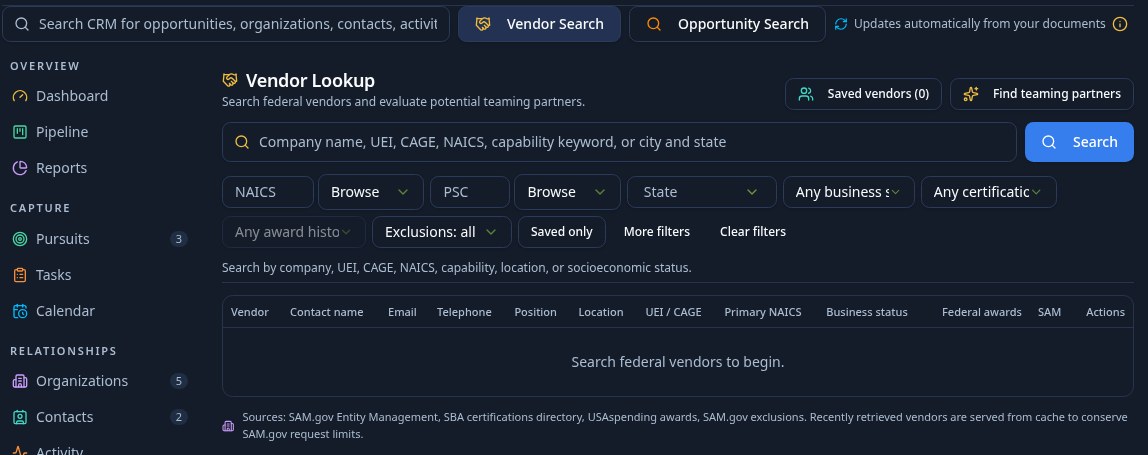
Vendor Search is a federal vendor research workstation on the Search page. Search public SAM.gov and SBA registrations, see published contact information, review capabilities and award history, then save promising partners to your CRM.
- 1
Open Vendor Search from the Search page
Vendor Search sits beside Opportunity Search on the Search page in the main menu. Clicking it switches the view to the vendor research panel, and anything you save lands in your CRM.
Vendor SearchOpportunity Search - 2
Search by company, code, or location
Type a company name, UEI, CAGE, NAICS, PSC, capability keyword, city, or state. Filters for small business status, socioeconomic certification, federal award history, and exclusion status help narrow the list.
UEICAGENAICSPSCSmall Business8(a)SDVOSBWOSB - 3
Read published contacts first
The results table leads with publicly published contact name, email, telephone, and position, followed by location, UEI, CAGE, primary NAICS, business status, and federal awards. When a field is not publicly available, the table says so rather than guessing.
- 4
Open a vendor record
Click a vendor name to open the detail panel. Tabs cover overview, capabilities, awards, teaming fit, contacts, and the public sources that supplied each value. SAM registration status and any exclusion match are flagged clearly.
- 5
Save and categorize vendors
Save a vendor to your CRM with one click, then set the relationship: potential prime, potential subcontractor, teaming partner, competitor, or other. Saved vendors appear in the CRM and can be removed at any time.
Save to CRMPotential primeTeaming partner - 6
Evaluate fit against an opportunity
From a saved vendor or the results table, run Evaluate for opportunity to score the vendor against one of your CRM opportunities. The analysis compares NAICS, PSC, certifications, location, and past performance, then explains the fit.
- 7
Find teaming partners automatically
Find teaming partners ranks active SAM registrants against the NAICS, PSC, set-aside, agency, and place of performance of a chosen opportunity, excluding your own company, and returns a scored shortlist.
- 8
Draft outreach without inventing facts
Saved vendors can generate an outreach email draft that references your company strengths and the opportunity, while never fabricating contact details or awards. Review and send it from your own email client.
Outreach draft
Tips
- Vendor Search only uses public federal sources. Emails and phones come from the SBA DSBS directory where published; SAM.gov does not publish contact emails directly.
- Exclusion matches are pulled from the SAM exclusions dataset. Always verify on SAM.gov before making a teaming decision.
- Federal award totals are pulled from USASpending.gov, not inferred from SAM status.
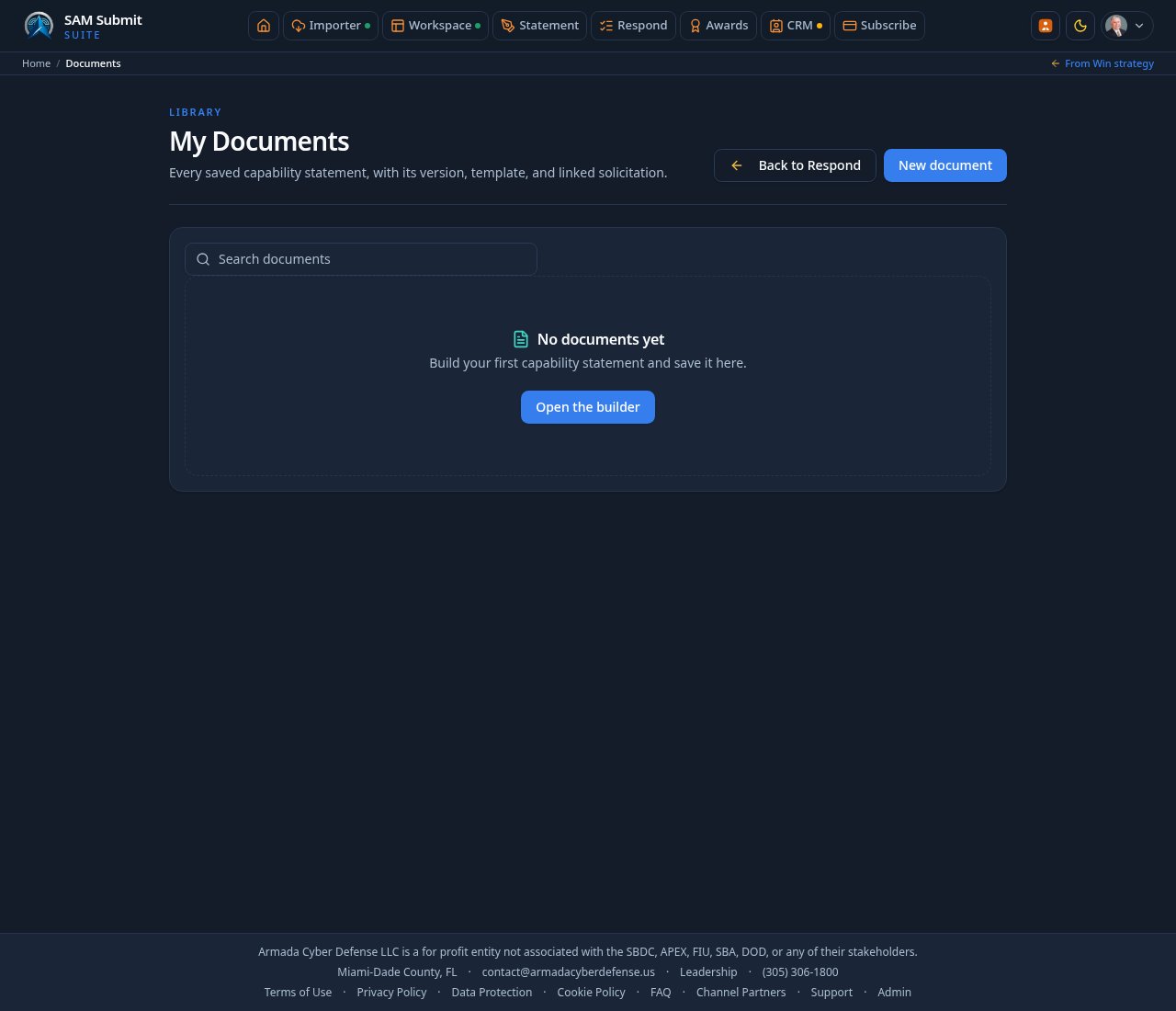
My Documents lists every saved solicitation response with its profile, template, and date, so past submissions stay reusable.
- 1
Reopen a document
Opening a saved document restores its template, content allocation, and styling in the Statement screen exactly as you left it.
- 2
Duplicate before a new pursuit
Duplicate an existing statement and tailor the copy. The original stays intact as your baseline.
- 3
Keep names consistent
Agency plus opportunity plus month is a naming pattern that stays sortable as the library grows.
- 4
Remove what is stale
Delete removes a document from the library. Old documents built on out of date certifications are a liability, not an archive.
Account settings holds your profile and company defaults. Subscribe shows plans priced by user count, with the same unlimited capabilities included in every paid plan.
- 1
Keep your contact details current
The contact block feeds document footers, so a stale phone number ends up on a submitted statement.
- 2
Know what free accounts can do
Free signed-in accounts can look around: browse every page, save work, and use CRM and workspace basics. AI tools and SAM.gov lookups need a paid plan or a trial invitation. Paid subscribers have no usage caps and include final downloads and emailed submissions.
- 3
Keep your work when navigating
Typed form drafts restore when you return to the same page in this browser. General form drafts expire after 7 days and are cleared on sign-out; passwords, API keys and other sensitive fields are excluded. Respond separately retains its working results and uploaded files. Saved documents and Workspace records remain separate from these browser drafts.
- 4
Choose by number of users
Essential includes 1 user, Professional includes up to 5 users, and Enterprise includes up to 15 users. Choose the plan that fits your team size.
- 5
Use the included capabilities
Every paid plan includes unlimited Solicitation Responses, Solicitation Responses, and Downloads, along with AI drafting and tailoring, CRM, Company Workspace, and GovCon Learning.
- 6
Subscribe before you set up
Checkout comes first: you can pay as a visitor and finish creating the account with the email you paid from. The benefits shared by every plan are listed once below the three plan cards, and the same list appears on the payment page.
- 7
Change plans as your team grows
Choose a larger plan when you need more users, or add users to your current plan at $35 each per month, at checkout or later on an existing account. All paid plans include the same capabilities, so your plan choice depends on team size rather than document volume.
- 8
Manage security
Change your password from Account settings, and sign out from the header menu on shared machines.
Optional predictive learning contributes eligible pursuit records to shared platform models, not a separate model for each company. Company and individual permission both start off. Set these choices in Account; only a company administrator can allow company contributions, and nobody else can opt an individual in.
- 1
Choose whether to contribute
Open Account, Learning data permissions. Read and confirm any opt-in. New learning snapshots and feedback are collected only when company and personal permission are both on. Declining does not change subscription permissions or block ordinary work. Existing business and learning history is not deleted by this choice.
- 2
Record outcomes when the government decides
The most valuable thing you can add is the result. When a pursuit resolves, record whether you won, lost, or were shortlisted. The Outcome prompt on your responses makes this a few clicks, and each outcome is joined back to the predictions that were made at the time.
- 3
Watch for ML confidence on Win Strategy
Once an admin promotes a trained model, Win Strategy scores gain an ML confidence level and an explanation showing which factors pushed your probability up or down. When no model is promoted, or a model underperforms, you silently get the deterministic rules engine instead, and the prediction is flagged as a fallback.
- 4
Understand what the models learn
Admin training assembles consent-valid production records across companies using derived company and solicitation features and recorded labels, with time-aware evaluation splits. Collection-time permission generations exclude legacy records and withdrawn contributions. Commercial AI drafting is separate; its processing and retention depend on provider terms and configuration.
- 5
Admins: open the Machine Learning console
In Admin, the Machine Learning tab opens the ML Control Center. Use Cases shows every registered decision layer and its current mode. System Map traces collection through outcomes and evaluation. Activity, Data Quality, Training Data, Models, Runs, Predictions, Performance, Feature Analysis, Feedback, Test Prediction, Growth Learning, Settings, and Logs expose the full governed lifecycle.
- 6
Start in collect-only mode
Growth collect-only mode records feature snapshots and outcomes only with company and personal permission. It does not change recommendations. Shadow and assisted modes remain subject to readiness thresholds. Hard rules keep priority. An administrator’s mode switch cannot grant customer consent.
Tips
- Recording outcomes is the single biggest lever. Predictions without outcomes teach the system nothing about accuracy.
- Withdraw either permission in Account to block collection and future reuse. A model containing withdrawn contributions becomes unavailable for future use and needs retraining. Historical records are retained; this is not deletion or mathematical unlearning. Renewed permission does not authorize old contributions.
- Fallback predictions are labeled, so you can always tell whether a score came from a trained model or the rules engine.
Your company has a single private workspace that owns its data. The first person to sign up from your business email creates it and becomes the Primary Admin, and everyone else joins by invitation. Company profile, opportunities, responses and saved packages are shared by the whole team, while what each person may do depends on their access level.
- 1
The first person from your company creates the workspace
Signing up with a business email creates the organization automatically and makes you its Primary Admin. Personal email providers cannot create one, since the company domain is what identifies the workspace.
- 2
Sharing a domain does not grant access
A colleague who signs up with the same company email is told the workspace already exists and to ask their administrator for an invitation. This is deliberate: the domain identifies your company, it is not a key to your data.
- 3
Invite colleagues from Team and Access
Open Account, then Team and Access. Enter the person's name and work email, add your invitation message, choose their access level, and send. They receive a single-use link that only works for that address, and you can resend or cancel it while it is still pending.
AccountTeam & AccessInvite - 4
Choose the right access level
View only reads the work. Statement downloads adds Solicitation Response PDFs. Proposal downloads adds full proposals and submission packages. Editor changes content. Organization Admin also manages people and billing. Every level is described in the invite dialog, and a change takes effect the moment you save it.
View onlyStatement downloadsProposal downloadsEditorOrganization Admin - 5
Share the work, not the login
Everyone in the organization sees the same company profile, pipeline, responses and saved packages, so nobody has to hand round a password or re-enter company data. The subscription and its user limit belong to the organization too.
- 6
Team up on pursuits and proposals
With two or more members, the CRM lets each pursuit be claimed by a capture owner and filtered by owner, and the proposal editor adds a Sections panel for assigning sections and a Review panel for comments, mentions, and a three step sign off ending in executive approval. See CRM and pipeline and Generate and send for the details.
- 7
Hand over or remove access
The Primary Admin role can be transferred to another administrator after a confirmation. Removing someone revokes their access to everything immediately. The workspace refuses to remove or downgrade its last administrator, and asks you to assign another one first.
- 8
Read the activity log
Invitations, joins, access changes, transfers and removals are all recorded with who did them and when, so an administrator can always see how the team reached its current shape.
Tips
- Invitations are limited to your company domain by default. Inviting an outside consultant needs the explicit exception on the invite.
- Organization administration is separate from platform administration. Being an Organization Admin gives you your company's team and billing, not the SAM Submit admin console.
- Downloads are checked on the server, so a view-only member cannot reach a proposal PDF by any route.
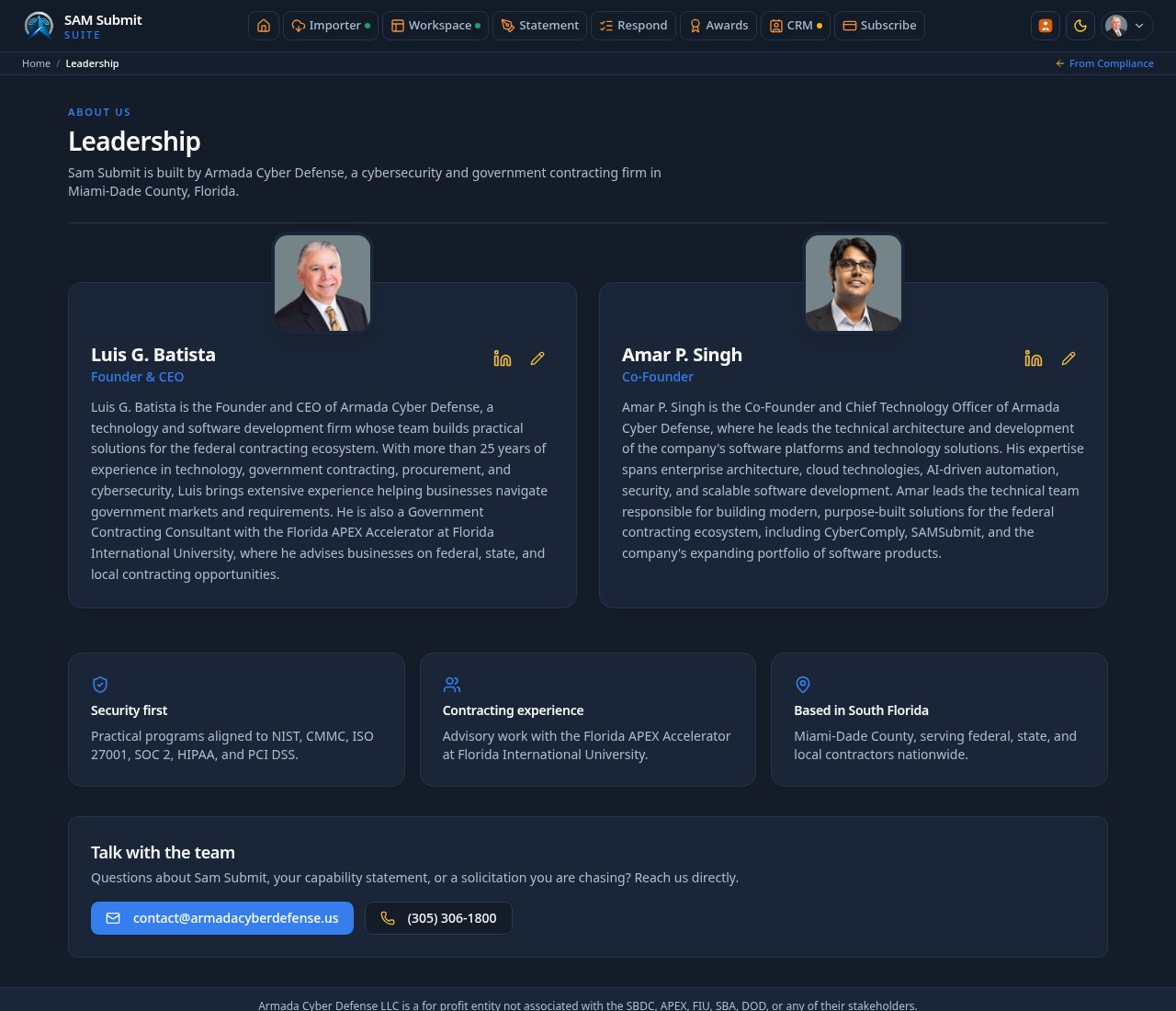
The Leadership page, linked in the footer alongside the contact email and LinkedIn, introduces the people behind the platform with a photo, title, bio and a LinkedIn link for each member.
- 1
Open it from the footer
Open Leadership from the footer alongside the contact email and LinkedIn links.
- 2
Read the bios
Each card holds a portrait, the person's role, a short bio, and a link to their LinkedIn profile, with a highlights row and a contact block below.
- 3
Admins keep it current
Signed in as an administrator, a pencil on each card opens the editor: upload a new photo, paste the LinkedIn link, and update the name, title, and bio. Changes publish immediately.
Growth turns company goals, Workspace evidence, SAM.gov opportunities, and CRM relationships into a shared plan. It keeps recommendations explainable, preserves unknowns, and never invents missing facts.
- 1
Set the goals that shape the plan
Record target agencies, industries, contract value range, geographic focus, planning horizon, and how your company wants to pursue work. Save them once for the organization so recommendations reflect the same strategy for the whole team.
- 2
Work the Roadmap
Roadmap cards explain what to do, why it matters, and which Workspace or public evidence supports it. Mark a step done, dismiss it as not for us, or send it to CRM tasks without recreating the work.
Mark doneAdd to CRM tasksNot for us - 3
Review matched Opportunities
Opportunities found through the CRM search are scored against your goals and company profile. Each card separates strengths, concerns, and unknown information, and links back to SAM.gov or into Respond.
- 4
Build Connections from real records
The Connections view uses companies already found through Vendor Search and saved in your CRM. A partner remains the same organization record everywhere instead of becoming a duplicate list.
Tips
- Unknown means the evidence is missing, not that your company failed the criterion.
- Add Roadmap actions to CRM tasks when someone needs to own the next step.
- Growth requires a signed-in organization because goals, matches, and tasks are shared company data.
Learning combines published SAM Submit courses, knowledge checks, certificates, personalized recommendations, source-backed federal updates, team assignments, and approved training from outside providers.
- 1
Browse the catalog
Search published courses by title, topic, or category. Each card shows difficulty, estimated time, and lesson count. The catalog, enrollment and progress require a signed-in account.
- 2
Learn and prove completion
Enroll, work through lessons, complete server-graded knowledge checks, and track progress in My Learning. When course requirements are met, the certificate records the course version and issue date.
- 3
Use For you without losing the catalog
Personalized Learning uses your company profile, industry, role, experience, and goals to put useful training first. It only reorders recommendations, and never hides the full catalog.
- 4
Browse approved external training
External training lists only administrator-reviewed courses from other organizations. Filter by provider or cost, see the published format and availability, then open the provider's own page. You can save a course or self-report completion, but SAM Submit does not claim to verify activity on another site.
- 5
Follow confirmed federal updates
Updates appear only when a change has been confirmed against an official source. Each briefing keeps its citation and effective date so your team can verify what changed.
- 6
Assign training across the team
Organization administrators can assign courses and review member progress from the Team tab, while each learner keeps their own enrollments, progress, and certificates.
Tips
- External course labels identify training that runs on another provider's site.
- A missing cost, duration, or availability is shown as not published rather than guessed.
- Learning is under the Growth menu in the main navigation.
The contextual assistant opens on the right side of Learning and understands the course or lesson in front of you. It answers from approved material and official sources, not from an unsupported guess.
- 1
Open Ask SAM Submit
Use Ask SAM Submit from Learning or a lesson. The panel carries the current Learning context into the conversation and starts fresh when you move to a different lesson or course.
- 2
Type or speak
Type a question, or use the microphone to record one. The transcript appears in the question box for review and editing before anything is sent. The microphone never records continuously.
- 3
Check what the answer is based on
Grounded answers list their sources. If the approved course or official material does not support an answer, the assistant says so rather than inventing a citation or pretending it can see proprietary external course content.
- 4
Listen, simplify, and practice
Read an answer aloud, ask for a simpler explanation, request practice questions, or follow a related training recommendation without leaving the page.
- 5
Rate the answer
Helpful and not helpful controls feed quality monitoring. Conversations and feedback stay scoped to your organization.
Tips
- The assistant requires sign-in because it uses AI and organization context.
- Review a voice transcript before sending when names, acronyms, or contract numbers matter.
- Use Practice questions after a lesson to check recall before taking its knowledge check.
- Ask SAM is not only on Learning: on other pages it opens beside Back to Top and answers questions about the page you are on, your company data and your documents. Assistant access requires a paid plan, trial invitation or administrator-granted exception. Free accounts have no AI access by default; paid subscribers are unlimited.
Platform administrators can prepare a client's company profile, choose ownership and a time-limited unlimited-access grant, then send a personalized invitation from Admin, Add a client.
- 1
Bring in the company information
Open Admin, Add a client, or its CRM Organizations shortcut. Fetch the DSBS profile, upload a company document, or enter the details manually, then review the company fields.
- 2
Enter the client and access details
Enter the client's name and email, add your personal invitation message, and choose whether the client owns the workspace, you remain the owner, or both are administrators. Set the unlimited-access duration in days or months and review its end date.
- 3
Create and invite
Create the company and invitation after checking the details. The invitation uses the recipient name, company name and your message. Check the send result rather than assuming an email reached the inbox.
- 4
Edit a pending invitation
On the client card choose Edit invitation. Change the contact name, email or personal message and Save. Saving does not replace an email already received; use Resend invitation to send the new details.
- 5
Resend and review its history
Choose Resend invitation on the company card. The visible card note records the latest resend date, recipient and how many times it has been resent.
- 6
Extend or remove access
Extend restarts the unlimited-access clock using the duration chosen in the form. Remove access returns the company to its own plan. Draft company and invitation entries are retained when navigating away and back in the same browser.
- 7
Review the application Workflow
Every signed-in member can open Workflow from the footer link between Feedback and Admin, or from Admin, System Health. Color-coded stages and arrows show the common path, with dashed alternate and return paths. Each destination links to its section and opens its ordered steps. The view follows the shared Guide, live destinations and maintained workflow relationships. Workflow is not in the main menu.
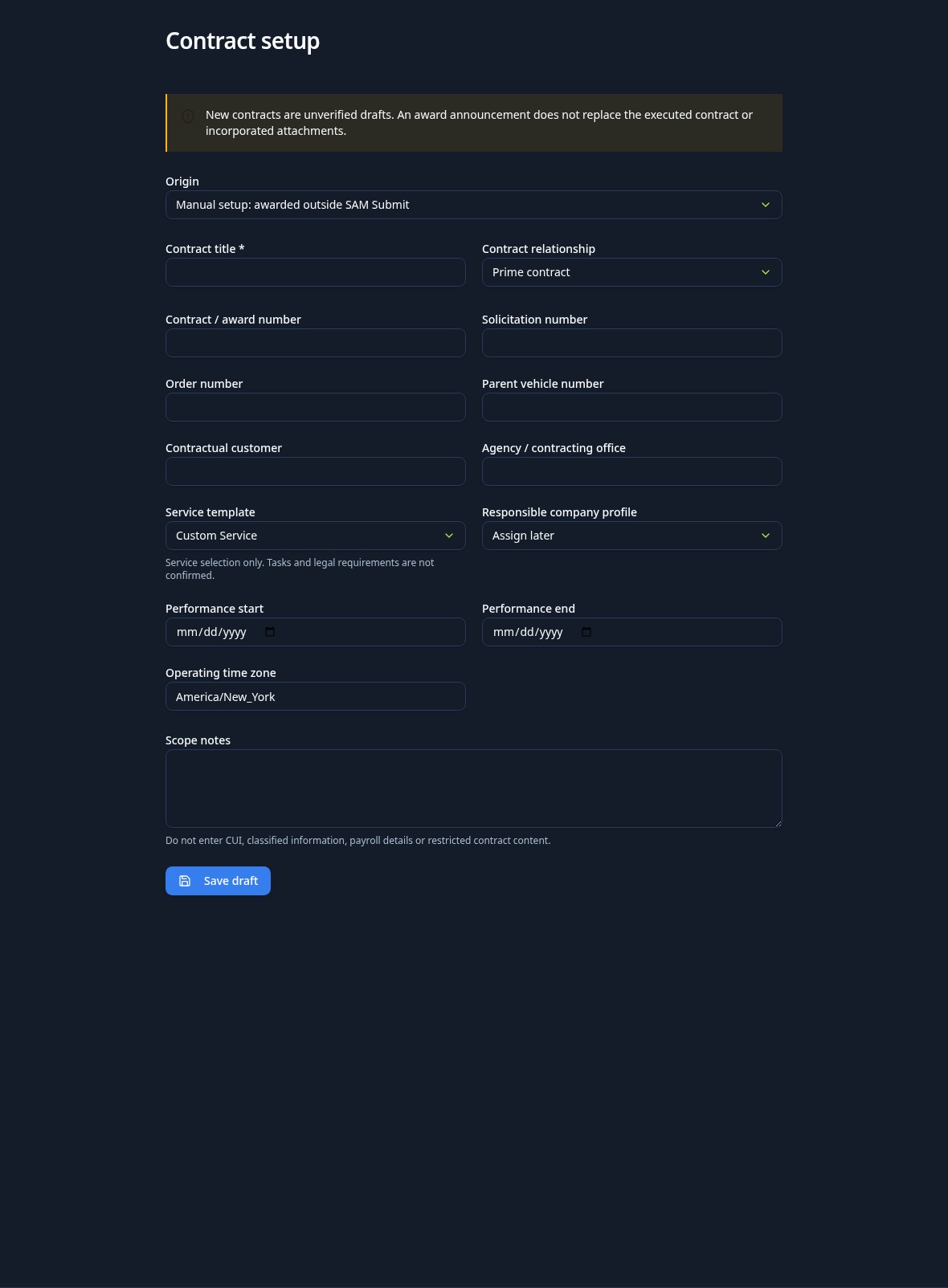
Perform is the post-award workspace. Its portfolio summarizes active contracts, setup drafts and source review needs. Each contract opens on a dashboard with financial totals, recorded time, obligations and links to the work that needs attention.
- 1
Open the contract portfolio
Choose Perform between Awards and CRM in the main menu, or use the Perform entry on your main dashboard. Filter the portfolio and choose Open dashboard on the contract you want.
- 2
Check Perform access
Perform availability is controlled through member access, not a company-wide portfolio switch. Company administrators grant separate contract roles. If you cannot create a contract, ask your administrator to check your feature access and contract role.
- 3
Create a setup draft
A company administrator can create a new contract draft or convert a won opportunity. Check the contract number, customer, title and dates before saving. Conversion preserves the opportunity link but does not certify an award announcement as approved terms.
- 4
Start with the dashboard
Read funded and invoiced amounts, recorded time and obligation counts. Needs attention links take you to the relevant work section. The execution snapshot shows source review, assignments and report progress from saved records.
- 5
Navigate one work group at a time
Use Dashboard, Contract details, Award documents, Obligations, Sites and team, Field operations, Finance, Changes and partners, Reports and closeout, Templates and AI, and Access and history. A selected view remains in the page address, so browser Back and Forward return to the section you were using. Contract details holds draft terms; authorized managers can review Contract history in Access and history.
Tips
- A contract marked SAMPLE is fictional demonstration content, not a real government award or payable invoice.
- Creating a draft does not approve its baseline. Review the source documents and obligations first.
Approved contract terms must be backed by reviewed source evidence. Perform preserves award document versions privately and reports extraction completeness page by page, rather than treating an award notice or proposal promise as a verified obligation.
- 1
Upload the award source in Documents
Open the contract, choose Award documents and select Upload document. Give it an identifiable name and version. A correction belongs in a new document version, not an overwrite of the original evidence.
- 2
Check every extracted page
Compare extracted text with the original document using the source view and download. Review page-level extraction results. Unable to assess means the page cannot support a complete assessment yet; do not treat missing text as proof that a requirement does not exist.
- 3
Record the source review
Mark the document reviewed only after checking its content. Review is a human confirmation, not an AI confidence score. Authorized contract users can open the private source; it is not an anonymous public download.
- 4
Confirm the linked obligations
In Obligations, review each requirement against the correct document and page. Resolve all obligations awaiting source review before asking to approve the baseline.
- 5
Approve the baseline from Reports
A manager uses Approve baseline in Reports and closeout after the award source is reviewed and fully extracted and no obligations remain unreviewed. Approval moves the setup draft into active execution and locks the approved terms. If the action is unavailable, check the outstanding source and obligation reviews.
Tips
- The source file and review evidence remain part of the contract history.
- An award announcement alone is not a reviewed contract baseline.
The obligations register separates two questions: whether a requirement has been verified against its source, and whether the required work has been completed. Source review and execution progress are never the same status.
- 1
Add the requirement and its source
In Obligations, enter the requirement, category and due date where applicable. Link its supporting document and page from the same contract so another reviewer can trace it back.
- 2
Confirm what the source requires
Review the cited page and set the verification state. A requirement awaiting source review is not automatically overdue work. Resolve uncertainty against the source before presenting it as a confirmed contract obligation.
- 3
Track execution independently
Update work progress as the obligation moves through execution. Use due dates and the dashboard attention list to follow outstanding items without replacing the source-review decision.
- 4
Explain a not-applicable decision
Record a reason when an obligation does not apply. Keep the source reference and decision history rather than removing the evidence.
- 5
Connect the obligation to staffing
Use the Team section to link assignments to the relevant obligation and site. Return to the dashboard or Reports to see the contract-wide progress.
Tips
- Template suggestions need manager review; applying a template does not create legally verified terms.
Sites and team organizes contract sites, company workforce records and assignments. Shift planning lives in Field operations. A worker record is separate from a sign-in account and does not store pay or cost rates.
- 1
Define the contract sites
In Sites and team, add each site with its location, valid time zone and access notes. Sites belong to this contract, and their time zones matter when reviewing work dates and shift times.
- 2
Add company workers
Create workforce records and record relevant qualifications. Workers can exist before receiving a login. Deactivate a worker when appropriate rather than assuming an old staffing record grants application access.
- 3
Create assignments
Link a worker, site and, where relevant, obligation within the same contract. Set the assignment details so field entries can be associated with the right work.
- 4
Plan shifts and review flags
In Field operations, add shifts for assigned workers. Overlapping worker shifts and qualification mismatches are flagged for human review rather than blocking a save. Check the warning and decide how to resolve it before relying on the schedule.
- 5
Grant sign-in access separately
A company administrator uses Access to grant a member the appropriate contract role. Adding a worker or assignment is not a substitute for this permission.
Field operations holds schedules, the time register, correction requests, daily reports, quality events and sync queue. Submitted evidence is preserved, and corrections add a traceable record instead of silently rewriting worked time.
- 1
Record and submit time
Choose the correct worker and contract assignment, enter the time details, then submit for review. Managers approve or reject submitted entries. Recorded content remains immutable even when its review state changes.
- 2
Request a time correction
If an entry is wrong, create a correction request with the reason and adjustment. A manager decides the request. An approved correction adds a signed adjustment entry, leaving the original record unchanged.
- 3
Write a daily report
Record the worker's work for the contract day, then submit it for review. There is one daily report per worker, contract and day. Submitted and reviewed report content cannot be rewritten; review state changes preserve the evidence.
- 4
Review pending field work
Managers review submitted time and daily reports in Field. The contract dashboard and Reports update from the saved entries, so check those summaries after a decision.
- 5
Inspect sync events
The sync queue tracks received field events and their processing state. Repeated client event keys do not create duplicate records, and processed events cannot be processed again. Resolve pending events before final closeout.
Tips
- These instructions cover the available web workspace and server sync queue only. Native iPhone and Android apps, GPS, offline device restart/reconnect tests and background location validation are not delivered capabilities.
- Time history and corrections support an audit trail, not a payroll-grade certification. Wage calculations, payroll-provider reconciliation and real-device validation are not verified; approving time does not transmit payroll.
Field operations holds quality records; Finance holds itemized invoices and funding actions. Saved financial records supply the dashboard and report totals; amounts are calculated from the recorded line items, not an AI estimate.
- 1
Record and resolve quality events
In Field operations, add an inspection, nonconformance or corrective action with supporting details. Managers review events. A closed event requires a resolution note and cannot reopen, so keep the final decision clear.
- 2
Build an itemized draft invoice
Enter a contract-unique invoice number and line items. Review the calculated total before submission. Draft content can be revised; submitted content is locked.
- 3
Track invoice state
Submit the reviewed invoice and record its later state, such as sent, paid or void, using the available authorized actions. Marking paid is a controlled recordkeeping action, not proof that a bank payment occurred or that the government accepted the invoice.
- 4
Record funding actions
A manager records base funding, modifications and exercised options. Check the amount and source details before saving. An invoice does not itself create funding.
- 5
Reconcile the financial snapshot
Compare funded, invoiced, paid and remaining amounts in the dashboard and Reports. Void invoices are excluded. Remaining reflects recorded funding less non-void invoiced amounts, not a bank balance or profit estimate.
Tips
- Perform financial records do not send real invoices, execute payments or establish government acceptance.
- Accounting connections to QuickBooks Online or Wave transfer an invoice only when you send it; payroll integrations still require real connections and validation.
Changes keeps the modification trail and partner notes. Tools provides service-template reference material and an AI brief grounded in saved contract records. Neither a template nor AI output silently changes approved contract terms.
- 1
Record a modification in Changes
Use a unique modification number for this contract and review its details before approval. An approved modification is locked; later changes belong in a new modification rather than replacing the approved record.
- 2
Maintain the partner register
Record teaming partners and their operational notes in Changes. A partner entry does not grant login access, contract permissions or authority to approve work.
- 3
Share one partner request
Company administrators can create a restricted invitation for one request addressed to that partner and explicitly select reviewed documents. The recipient must sign in with the intended verified email and accept the secret invitation link. Creation does not send a message. Record actual delivery evidence separately. Partners see only that request, selected files and their own immutable reply revisions, never internal costs or other partners. Revocation blocks new reads, replies and downloads; it cannot retract previously downloaded or already in-flight bytes.
- 4
Apply recorded execution evidence
Review / apply execution requires a reviewed same-contract document, recorded authorizer and date, effective date and reconciliation rationale. A company administrator reviews changed scope, periods, line quantities/rates/ceilings, unsubmitted obligations and deliverables, staffing roles/periods, signed funding change and separate cost-budget change. Application preserves prior snapshots and updates records together; changed obligations return to source review. Durable internal owner notices preserve affected records for review and acknowledgment or resolution with evidence. Submitted delivery, time and billing history never changes automatically. Future changes cannot apply early. These are team-recorded authorization records, not independently verified government approval.
- 5
Review company readiness and renewals
Company readiness on the Perform dashboard stores registrations, insurance, licenses, qualifications, training, reporting and source-reviewed clause requirements. Link affected contracts, workers, assignments and pursuits. Record issuer, identifier or rule version, effective and expiration dates, source, reviewer, facts, consequence, next step, owner and escalation owner. Reported status and source verification remain separate. Due reminders are recorded daily at 06:00 UTC, at most one per configured interval; Process due reminders also runs the same deduplicated check. Reminder acknowledgment never files or renews anything. Renewal creates another immutable evidence version. Export workpaper downloads current recorded evidence, not official certification.
- 6
Review supplier disputes and performance
Each partner card records disputes with source evidence, responsibility, due date and optional disputed amount, reviewed contract document, quality event or subcontract version. A linked subcontract remains disputed until every open supplier issue has an evidence-backed resolution or withdrawal. Original costs and commitments do not change. Period-based performance reviews record separate quality, delivery, commercial and compliance ratings from one to five; unassessed dimensions stay unknown. Reviews and resolutions are permanent internal team records, not CPARS, government decisions or payments.
- 7
Reassess amended subcontract flowdowns
Review amendment opens every previous obligation as uncertain. Record its prime source, amended obligation, applicability, review basis and responsible reviewer. Removed obligations remain recorded as not applicable with a reason; added obligations have their own reviews. Every previous item must be reviewed exactly once before the amendment can be recorded. Prior versions and reviews stay intact. These are team-recorded reviews, not legal certification or verified external signing.
- 8
Review quotes and requested documents
In Partners, record an internal quote or document request for selected partners on the contract. Record source-reviewed replies with price, validity, lead time, scope coverage, exceptions, qualification review and reviewer. Revised replies preserve earlier versions. Compare current unexpired quotes and record the selection rationale; a single quote needs an explanation. Document replies require a reviewed contract document. Final decisions lock the request. These records do not send messages, grant partner access, execute terms or post costs.
- 9
Preview a service template in Tools
Choose from 20 NAICS service templates or Custom Service. Read the preview before applying it. Applying a template adds reference content without deleting existing contract records, and preserves the catalog version used.
- 10
Confirm the service metrics
A manager reviews the suggested metrics and explicitly confirms those that apply. Unconfirmed metrics remain suggestions rather than verified obligations or approved contract terms.
- 11
Generate and verify an AI brief
Generate the contract brief from saved records in Tools. It remains labeled as an AI draft. Check its statements against documents and ledgers before sharing; generation never changes invoices, time, staffing or the baseline.
Contract access is separate from subscription billing. Reports and exports read the saved contract records, while closeout checks for unresolved evidence before a contract can be marked closed.
- 1
Assign contract access
A company administrator opens Access and grants or revokes manager, supervisor, worker, finance, quality or auditor roles for company members. The role belongs to the selected contract, not every contract in the portfolio.
- 2
Read the status report
Open Reports for the consolidated source-review, obligation, staffing, time, daily-report, quality and financial snapshot. Authorized managers use Access and history to trace who changed a record and when.
- 3
Download read-only exports
Download the PDF status report or the CSV time register. Exports reflect saved records and do not alter the ledger. Spreadsheet-sensitive CSV values are protected so exported text is not interpreted as a formula.
- 4
Move active work into closing
Use Begin closeout in Reports and closeout when time, obligations and daily reports have no open work left. If a check blocks closing, resolve the underlying items rather than bypassing the record.
- 5
Complete final closeout
Mark internally closed requires reconciled obligations, final acceptance, sync, supplier balances, commitments, costs and invoice states, plus property, final-report and retention evidence. Remaining receivables require a company-admin-recorded exception with reason, owner and next-action date; they do not imply payment. Retention holds and their release preserve records, while authorized reopening records its source and reason. Download archive manifest exports the scoped record inventory, source-file hashes, balances, reviews and archive history. Archived documents remain retrievable by authorized users. Internal closure never establishes government closeout.
Tips
- Access checks also cover files and exports; a browser link is not permission to another company's contract.
- Closing a Perform record is internal recordkeeping, not an official government closeout decision.
Each subscriber company connects its own QuickBooks Online or Wave account from the accounting connections page. Saved Perform invoices can then be sent to your books, and a payment status check confirms the accounting record before an invoice is marked paid.
- 1
Open accounting connections
Choose Accounting connections from your account menu, or use the link on a Perform contract's Finance section. The page works without any contract, and the connection belongs to your company rather than to one person or one contract.
- 2
Use standard authorization
Use Connect QuickBooks Online or Connect Wave when standard authorization is available. You authorize your own company without entering client credentials. If setup is not available, SAM Submit must finish its provider application configuration and approval. Existing company registrations remain supported in Advanced: use your own application; this is optional, not normal onboarding.
- 3
Authorize your accounting company
Choose the provider’s Connect button and complete the authorization in the pop-up window, then confirm the QuickBooks Online company or Wave business that should receive invoices. Disconnecting revokes access while keeping already-saved invoice links for the records.
- 4
Send an invoice to your books
In Perform Finance, transfer a submitted or sent invoice to your accounting provider. The transfer is explicit and runs once per attempt: it is never retried automatically when the result is uncertain, and sample invoices cannot be transferred.
- 5
Check payment status
Request a payment status check against the accounting record. The invoice is marked paid only when the provider confirms the exact amount and currency with a zero balance, through the same controlled action used to record a payment by hand.
Tips
- Connecting QuickBooks Online or Wave does not replace the financial records in Perform; the status report still consolidates Perform's own funding and invoice records.
- Only your company administrator sets up or changes accounting connections, and saved credentials stay encrypted on the server.
Pricing estimates are cost-and-sell-price workpapers, not CPARS ratings or award terms. Draft versions keep quantities, costs, burdens, escalation and markup or margin reviewable before approval.

- 1
Create an estimate for the pursuit
Open Pricing and estimates, name the estimate and optionally link the notice or solicitation. Choose the pricing profile and create a draft. Enter the actual cost lines and rates supported by your evidence, rather than assuming a selected profile proves industry compliance.
- 2
Review the calculated price
Review line quantities, unit costs, burdens, escalation and markup or margin. Compare versions before approval. Fixed-point calculations keep totals consistent; source assumptions remain your responsibility.
- 3
Use Excel and quote evidence
Export a workbook with formulas matching the app, or explicitly map a sheet and columns for draft-only import. Review replacement before accepting it. Attach supplier quotes with validity and lead time. Quote originals remain private and immutable when a version is branched.
- 4
Approve the reviewed version
Approval locks that version. Further pricing changes need a new draft version. Internal costs and supplier files require organization cost visibility, not merely a proposal download link.
- 5
Carry approved pricing into the proposal
Attach an approved sell-price snapshot in the saved proposal. Pricing changes create a named version and require pricing and executive approval for that version. Supplier costs are not copied into the sell-price snapshot.
- 6
Reconcile after award
Propose the budget for the Perform contract, reconcile it against reviewed award terms and approve it separately. An estimate or won opportunity never silently approves the contract baseline or awarded budget.
Tips
- Labor wage and fringe references require effective dates, location, source, contract context and review. Referenced fringe never automatically changes cost or billing rates.
- Approved proposal prices are not proof of a government award or a received payment.
Finance keeps awarded lines, budgets, actual costs, commitments, billing and funding distinct. Delivery acceptance provides evidence for acceptance-dependent billing, not an automatic payment.
- 1
Review awarded lines and budgets
Open Finance and review line identifiers, quantities, rates, periods and ceilings against the approved baseline. Review any proposed estimate budget before approval. Internal cost access remains restricted.
- 2
Record costs and review forecasts
Use the job-cost ledger for recorded actuals, remaining commitments and forecasts. Reconcile costs to their source records. Funding and an approved sell price are not the same as profit or cash collected.
- 3
Review deliverables and acceptance
Preserve deliverable versions, submit them for internal review and record the customer's decision with evidence. Resolve required acceptance before billing dependent lines. An internal review is not a customer decision.
- 4
Build the invoice package
Create invoice lines from eligible contract lines and attach timesheets, receiving records and documents. Check duplicate billing warnings. Submission locks content; a rejected invoice uses a corrected version instead of rewriting its history.
- 5
Follow collections separately
Record supported partial payments and credits with the controlled actions. Use accounting transfer only when configured and explicitly authorized. Review monthly performance packages, outstanding balances and any closeout collection exception without implying government portal acceptance.
Subcontracts extend the existing Perform partner register, preserving immutable reviewed terms, predecessor amendments and one job-cost ledger. Recorded execution evidence is not an independent signature certification.
- 1
Review the agreement before execution
Choose the contract partner and review scope, price, periods, source agreement and individual flowdowns. Execution requires contract-manager and financial access plus reviewed evidence, signer and dates.
- 2
Post reviewed bills
Record bills against executed terms. Actual costs and remaining commitment reconcile through the shared ledger, with reference-based duplicate safeguards. A recorded bill does not transmit a payment.
- 3
Reassess each amended obligation
An amendment links its predecessor and starts prior flowdowns as uncertain. Reassess every prior obligation exactly once; removed obligations retain a reason and additions receive their own source review. Prior bills and reviews remain intact.
- 4
Resolve disputes with evidence
Use supplier disputes for evidence-backed review and resolution. Linked open issues block affected subcontract actions. Period scorecards preserve separate ratings and unknown dimensions, without modifying actual costs or commitments.
- 5
Reconcile termination and closeout
Record reviewed termination authority, effective date and settlement evidence. Retain actual costs, reconcile remaining liability and release only unused commitment. Closeout cannot discard unpaid settlement balances.
Saved-proposal reviews bind to the version being submitted. Preliminary capture planning, reusable-content review, requirement maps and final approval each keep their own evidence and purpose.
- 1
Review preliminary capture evidence
CRM capture reviews preserve the facts and administrator decision used for planning. Probability estimates are uncalibrated and strategy weights are heuristics. Final bid/no-bid remains after the proposal is complete and ready to send.
- 2
Map and review the requirements
In a saved proposal, link each requirement to its source, section, evidence, author and reviewer. Pending mandatory reviews block final approval. Evaluation alignment and Before you submit checks remain distinct. Edited content needs renewed review.
- 3
Use approved reusable content
Insert current approved company content with its source and restrictions. Changed, expired, superseded or withdrawn content cannot inherit its old approval. Missing-information exceptions require exact labels, written authority and version-specific company approval, not a claim that the government waived its requirement.
- 4
Review amendments and approved pricing
Assess affected sections when source revisions or pricing change, then renew the required reviews against that exact version. Live SAM.gov checks require your own key and a usable official reference; successful real-source acceptance remains an external verification item.
- 5
Approve and retain the exact final files
Requested checks remeasure exact bytes, types, sizes and supported PDF geometry. Individual visual attestations remain team reviews, not pixel-level certification. The immutable manifest keeps file hashes and approval evidence; receipts and debrief lessons are separate later records.
Leave a page and return to your unfinished work
Eligible browser-local drafts preserve entries across page, section and browser-tab changes for the same signed-in account. They are a convenience for continuing work, not a replacement for named saves or approved records.
- 1
Continue after switching sections or pages
Return to the same page address and section to restore eligible text, number, date and native selection entries, including panels opened later. Structured forms that use the shared draft store also retain their entries immediately before navigation.
- 2
Switch browser tabs or reload
Your same-browser drafts remain available when you switch browser tabs and return or reload. Respond also maintains its own working results and uploaded-file drafts; other editors and file-upload workflows use their own saved-work behavior.
- 3
Save important work by name
Use the page's Save action for a durable record or named version. A browser draft lasts seven days and does not sync unfinished work to another browser or device. A cleared field or explicit reset replaces the old working value.
- 4
Keep credentials out of drafts
Passwords, API keys, payment details, file-picker values and explicitly excluded fields are not captured by the shared form draft keeper. Browser storage can be cleared or unavailable. Signing out clears these drafts, so save important work first on shared computers.
Public procurement extends the existing CRM with source versions and requirement reviews. Federal, state, county, municipal and education requirements remain distinct. Current live coverage is limited to NYC City Record, not nationwide.
- 1
Register a permitted source
Open Search, Public procurement. Record the jurisdiction, coverage, official HTTPS source, terms, authentication approach, access method and freshness interval. Mark unsupported sources honestly; do not enter secrets in source descriptions.
- 2
Choose discovery or source review
When State and local is enabled for your member, Search shows State and local for bid discovery and Public procurement for reviewed source imports. The existing Data page also retains its State and local research section. Platform Admins see these tools through their verified Admin access. A search result is not a reviewed jurisdiction checklist or awarded contract.
- 3
Import the actual source version
Use a permitted manual or CSV import with source identity, local notice ID, source revision, deadline offset, named time zone and original text. Record local registration, certification, form, submission and amendment requirements with their sources. Reimporting identical evidence does not create a second pursuit.
- 4
Fetch NYC notices for review
The read-only NYC control retrieves up to 50 active solicitation notices from the official City Record dataset. Review the notice and add sourced requirements before importing. Retrieval is not official deadline certification, complete addendum monitoring or government submission.
- 5
Review and open the existing pursuit
Decide each sourced requirement as met, unresolved or not applicable with evidence or a reason. New source versions need renewed review. Open the linked CRM pursuit for capture planning; no federal rules are inferred for a local bid.
Open a contract, then Changes and partners for Product supply, Construction or Vehicles and orders. Manager and company cost permissions are required. These are reviewed internal records, not external orders, certified payroll or government authorization.
- 1
Review products and compare suppliers
Save manufacturer, part/NSN, condition, origin, traceability, substitutions and packaging evidence. Choose a saved contract supplier and matching billable line, compare two distinct current sourced quotes, then save purchase terms. Authorize the purchase explicitly; no order is sent outside SAM Submit.
- 2
Record stock and delivery evidence
Record receipts, reservations, shipments and customer acceptance with references, lots/serials, reviewer and date. Release reservations before shipping or supplier returns. Customer-return/RMA evidence restores stock and reduces accepted units; resolve existing invoicing first if returned units have been billed. Only net accepted quantities permit line billing.
- 3
Keep supplier liability separate
Authorization creates commitments; bills post actuals, and credits reduce actuals without deleting history. Cancel only unused purchases with signed liability evidence. For performed purchases, record final settlement liability between posted actuals and original authorization. This replaces remaining commitments, never costs or payments. Finalized purchases allow settlement bills/credits and remaining stock disposition, not new receiving or shipping.
- 4
Version construction sources and schedules
Record manual drawing takeoffs with page/revision, RFIs and affected-change evidence, submittals, bonds, punch items or reviewed payroll mappings. Activities use explicit dates, working weekdays and predecessor revisions. RFIs do not apply prime changes automatically; use the existing reviewed Modifications workflow.
- 5
Draft progress and release retainage
Link one reviewed value lineage to each contract line, then draft progress invoices with acceptance evidence and gross, held and net amounts. Release only the unreleased retained balance with customer authorization evidence, using a separate invoice. Releases do not add earned quantity or confirm payment. Unreleased retainage remains in closeout receivables; collections exceptions preserve, not forgive, the balance.
- 6
Revalidate schedules and export workpapers
Revalidate the complete current schedule. Superseded predecessor references fail closed; repair them with new successor revisions. Calendar-based critical-path analysis uses planned working-day durations and finish-to-start links, without resource leveling or holidays. For payroll workpapers, select a period with fully approved time and exactly one current reviewed mapping per worker. CSVs retain signed minutes and evidence, not wages, taxes, fringe, sensitive identifiers or certified government forms.
- 7
Review vehicles and existing orders
Record holder evidence, categories, eligible ordering users, periods, instructions and rates. Create an ordinary contract draft with its own order number and the exact parent vehicle number, then review it from the parent vehicle. Out-of-scope or expired orders remain flagged. New vehicle versions require renewed review; ceilings never add to child revenue. Draft-estimate rate references do not change labor costs or approve pricing.